Quick Start Troubleshooting Checklist
If you're facing Equalizer APO not working on Windows 11 or Windows 10, this guide covers the most common causes and fixes. Before diving into the detailed fixes below, run through this quick checklist (or review our complete Equalizer APO Setup Guide to verify your configuration). Most Equalizer APO issues can be resolved with one of these basic steps:
-
1
Did you restart your computer? Equalizer APO requires a full system reboot after installation or after making changes in the Configurator.
-
2
Is your device checked? Open the Equalizer APO Configurator and ensure the box next to your specific microphone or headset is checked.
-
3
Are you editing the right device? Check the top right corner of the Configuration Editor to ensure the correct playback or capture device is selected in the dropdown.
-
4
Did a Windows Update just happen? If Equalizer APO stopped working after a Windows update, the update may have reset or reinstalled your audio drivers. In many cases, you can fix the issue by opening the Configurator, unchecking your audio device, checking it again, and then restarting your PC.
Question 1: Why isn't Equalizer APO affecting my sound at all?
If Equalizer APO is not changing anything, you are not alone. Many users report that Equalizer APO does nothing, the filters are not applying, or that the software appears to be running but has no effect on the audio. In most cases, the problem is caused by Equalizer APO not being attached to the correct device.
Symptoms
You have Equalizer APO (or the Peace GUI) open. You are moving sliders and changing settings, but there is no difference in your audio output or microphone capture.
Possible Causes
The software is not properly hooked into your Windows audio pipeline because the specific audio device was not selected during the initial installation.
Solution: Select Your Device in the Configurator
Equalizer APO only modifies devices that you explicitly tell it to.
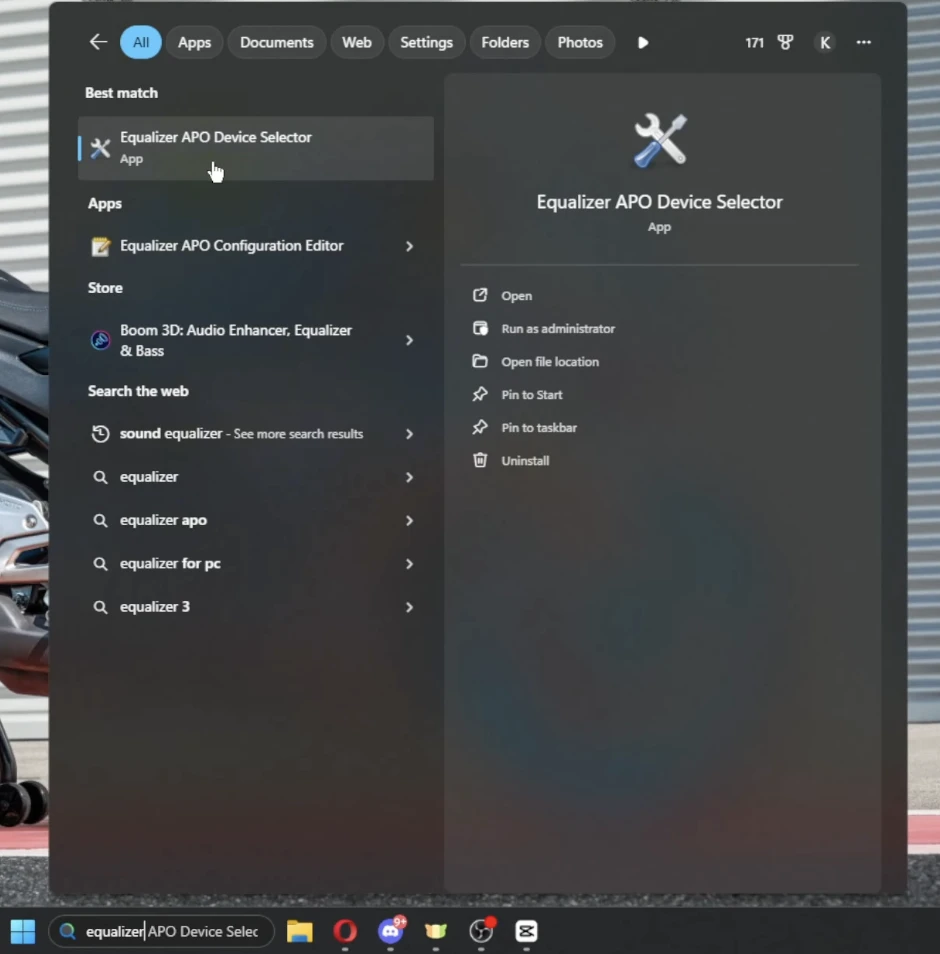
1 Open the Windows Start Menu and search for Equalizer APO Device Selector.

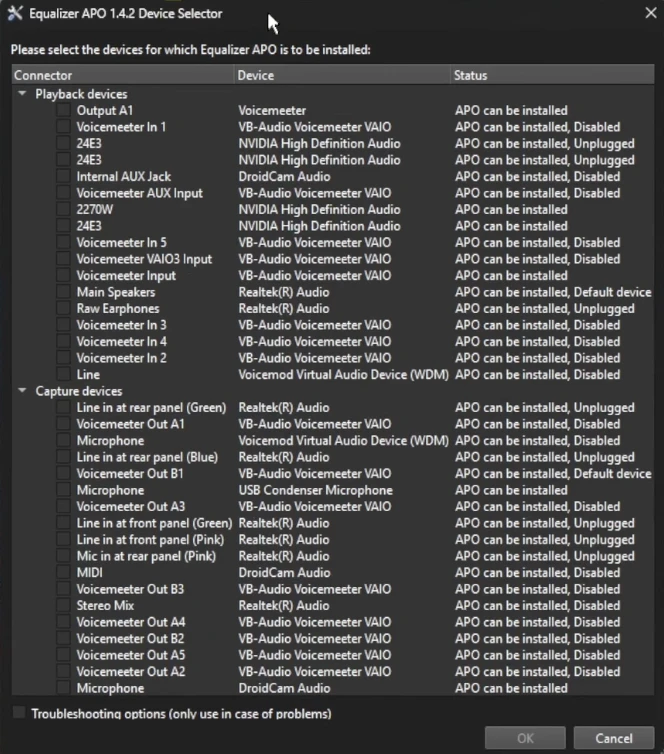
2 Look at the Playback devices and Capture devices tabs.
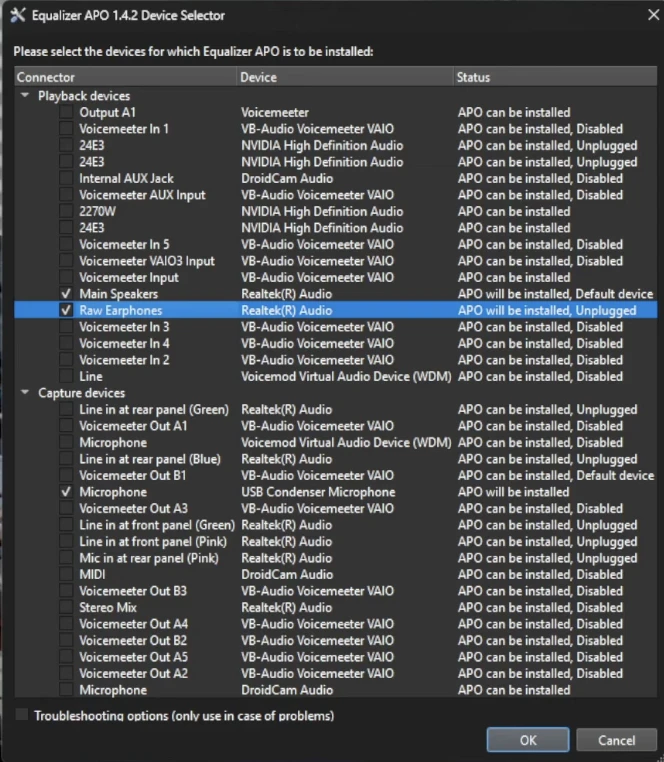
3 Find the exact device you are trying to modify (e.g., your specific USB microphone or headset) and ensure the checkbox on the far left is checked.
4 If you had to check a new box, click OK and restart your computer.
Question 2: Why are changes ignored even after selecting my device in the Configurator?
Sometimes, even after selecting the correct device, Equalizer APO is not applying any changes. You may notice that the Equalizer APO preamp is not working, the Graphic EQ has no effect, or that the Peace Equalizer APO is not working. This usually happens when the default APO installation mode is incompatible with your audio driver.
Symptoms
You have verified that your device is checked in the Configurator and you have restarted your PC, but the audio still isn't changing when you move the sliders.
Possible Causes
Windows uses different APIs for audio processing depending on your hardware. Equalizer APO defaults to a specific Audio Processing Object (APO) mode that may not be compatible with your headset or microphone.
Solution: Change the APO Installation Mode
You need to switch the APO API using the hidden troubleshooting menu.
1 Open the Configurator.
2 Click on the exact device you want to fix so the text is highlighted in blue.
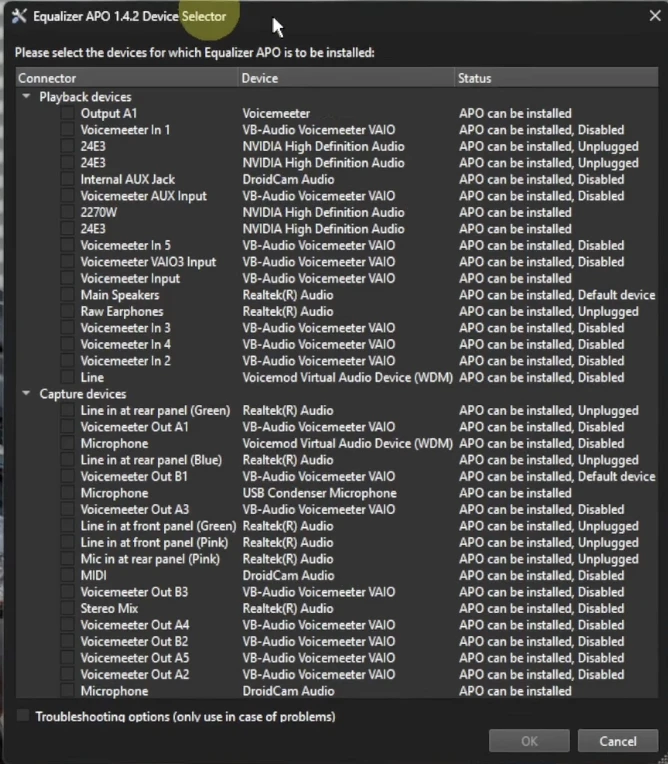
3 At the bottom of the window, check the box that says Troubleshooting options (only use in case of problems).

4 A new dropdown menu will appear on the right side of your highlighted device.
5 Click the dropdown and change it from the default to Install as LFX/GFX. (If it is already on LFX/GFX, try changing it to Install as SFX/EFX).
6 Click OK and restart your computer.
Question 3: Why is Equalizer APO not applying to the correct playback or capture device?
If Equalizer APO is not working on your microphone or you notice that Equalizer APO is not affecting your mic, the wrong playback or capture device may be selected. This issue can also cause Equalizer APO not detecting the mic, not boosting the microphone, or not applying changes to voice recordings.
Symptoms
You have Equalizer APO open. You move the sliders and change your equalizer settings, but you do not hear any changes in your audio, or your microphone recording sounds exactly the same.
Possible Causes
The incorrect playback or capture device is selected in the main Configuration Editor window.
Solution: Select the Right Device in the Configuration Editor
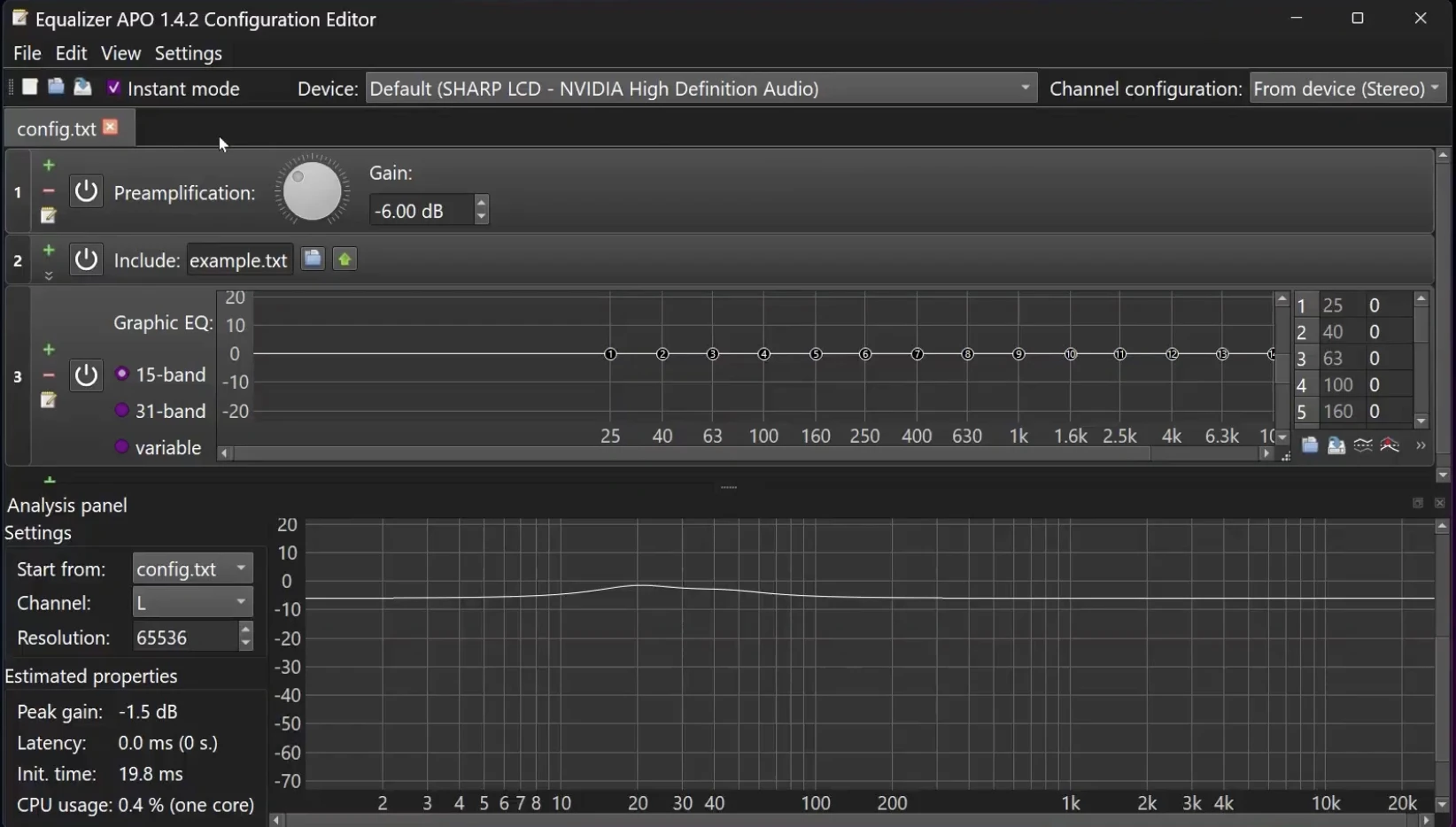
1 Open the Equalizer APO Configuration Editor.
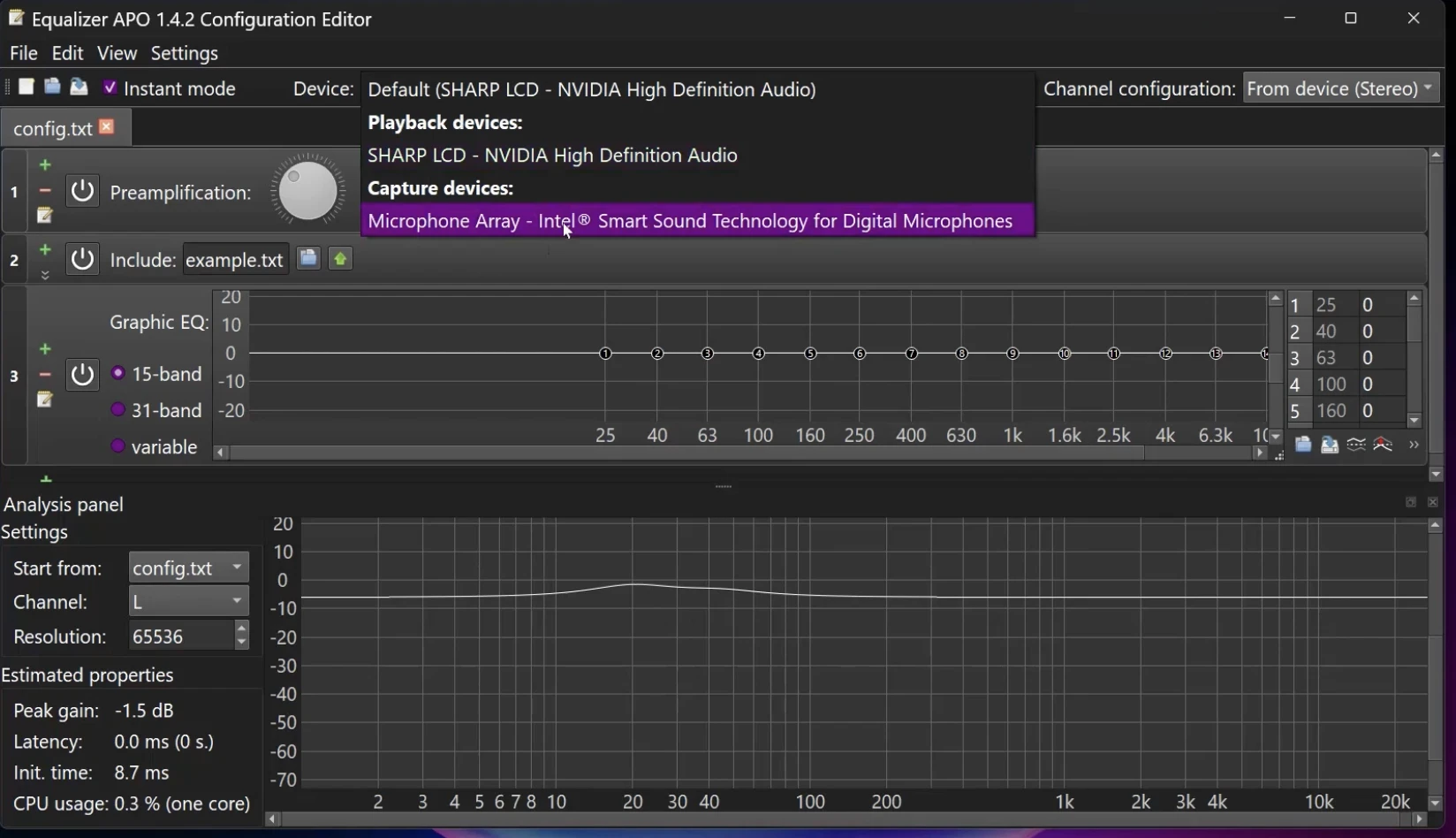
2 Find the Device option near the top of the editor window. Click on the drop-down menu next to the word Device.

3 Under Playback devices, click on the specific speaker or display device where you want the sound to play.
4 Under Capture devices, select your correct microphone. Make sure these physical devices are properly plugged into your computer.
Question 4: Why does my audio sound wrong or fail to work with my speaker setup?
Incorrect channel settings can make it seem like Equalizer APO is not working with Bluetooth headphones or that Equalizer APO is not working with Realtek audio devices. If your speaker configuration does not match your physical setup, some channels may be missing or audio effects may not work correctly.
Symptoms
The sound output does not match your physical speaker setup, or some audio channels are missing when you play sound.
Possible Causes
The channel configuration in the editor does not match your actual physical speaker setup, such as stereo or surround sound.
Solution: Set the Channel Configuration
1 In the Equalizer APO Configuration Editor, find the Channel configuration option on the top right of the window.
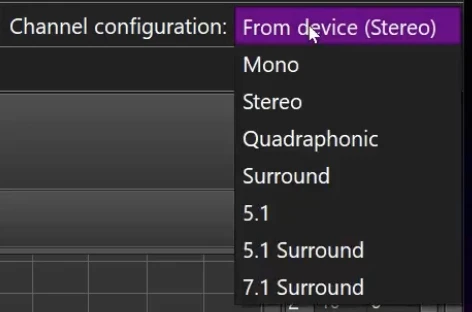
2 Click on the drop-down menu next to Channel configuration.
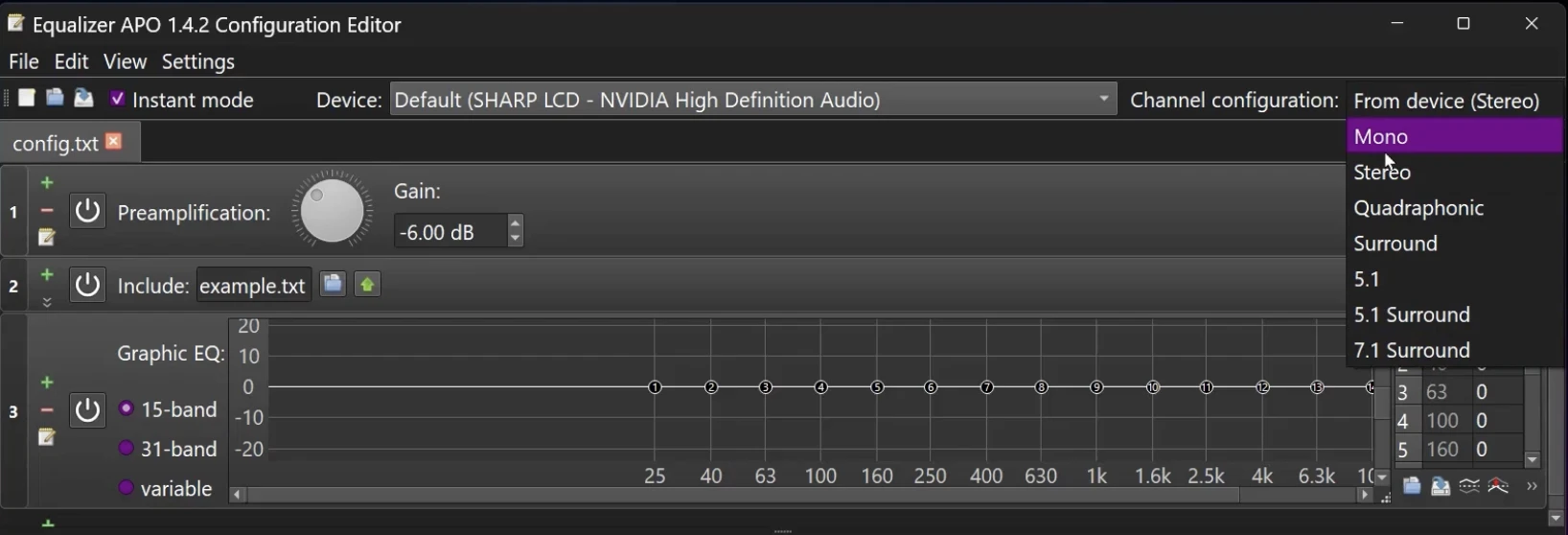
3 Select the option that matches your setup. For example, select stereo if you are using standard stereo speakers, or select 5.1 if you have a 5.1 surround sound system.
Question 5: Why are my audio devices missing from the Configuration Editor?
If your devices are missing, you might think that the Equalizer APO Device Selector is not working, that Equalizer APO is not showing up, or that the Equalizer APO Configuration Editor is not working. In many cases, the device is simply disabled, unplugged, or unchecked in the Device Selector.
Symptoms
Your headphones, speakers, or microphone do not appear in the Device drop-down menu inside the Configuration Editor.
Possible Causes
The devices are not checked, are currently unplugged, or are disabled in the Device Selector tool.
Solution: Check Device Status in the Device Selector
1 Click on the Windows Start menu, search for the Equalizer APO Device Selector, and click to open it.
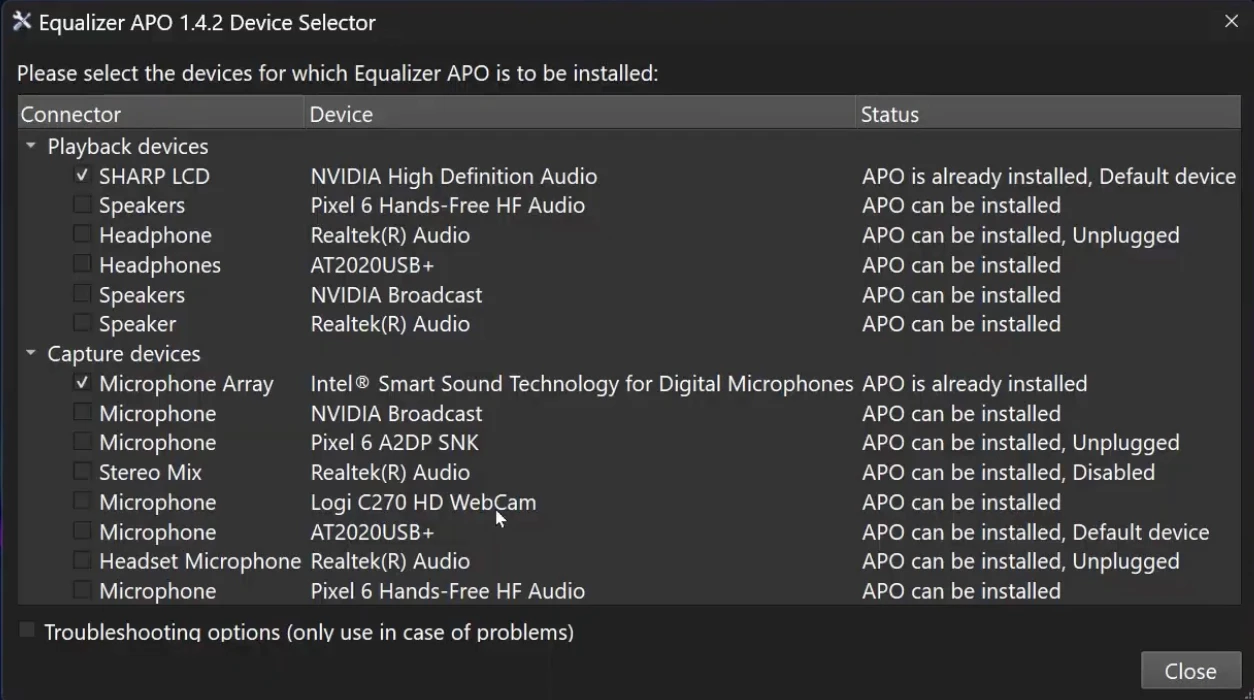
2 Look at the Status column on the far right. Ensure your device does not say Unplugged or Disabled.
3 Check the box on the far left next to the playback and capture devices you want to use. Selecting multiple boxes allows them to show up in your editor.
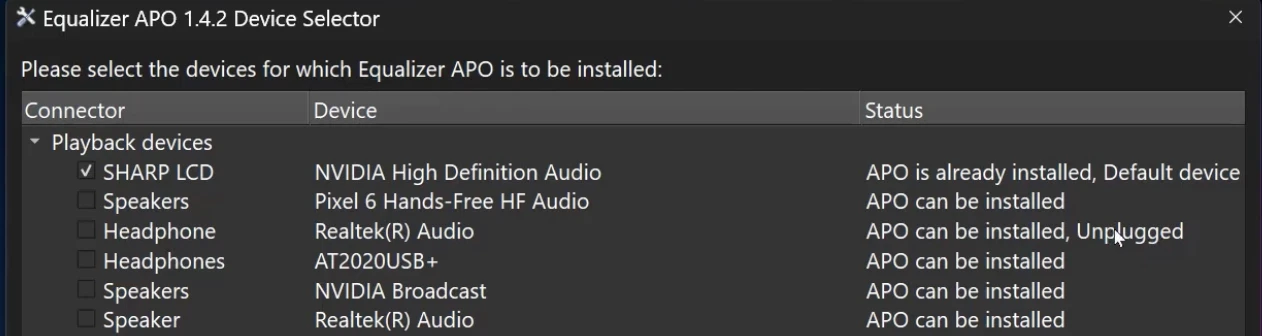
4 If you still have issues, check the box next to Troubleshooting options (only use in case of problems) at the bottom left of the window.

5 Click Close, restart the Equalizer APO app, and see if the problem is solved. If it is not solved, restart your computer to apply the changes.
Question 6: What should I do if Equalizer APO is still not working after checking my settings?
If Equalizer APO is not opening, stopped working after a restart, or still has no effect after checking all settings, the installation files may be corrupted. A clean reinstall often fixes issues where Equalizer APO is not working after restart or appears to load normally but does nothing.
Symptoms
You have selected the correct devices, verified the channel configuration, and checked the status in the Device Selector, but the equalizer still has no effect on your audio.
Possible Causes
The software files or the installation configuration may be corrupted.
Solution: Uninstall and Reinstall Equalizer APO
1 Click on your Windows Start menu and open the Settings app.
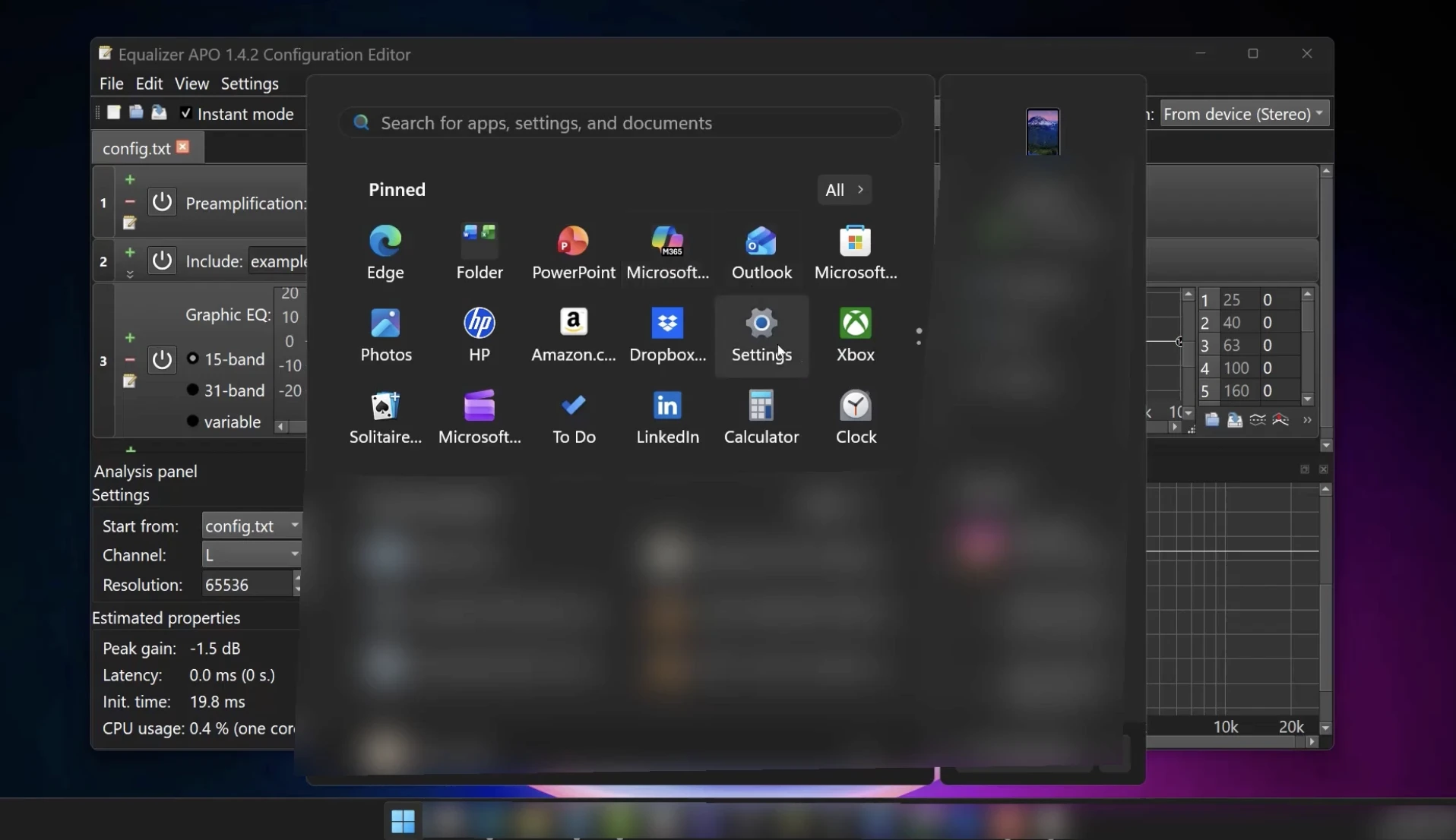
2 Select Apps from the left menu, then click on Installed apps.
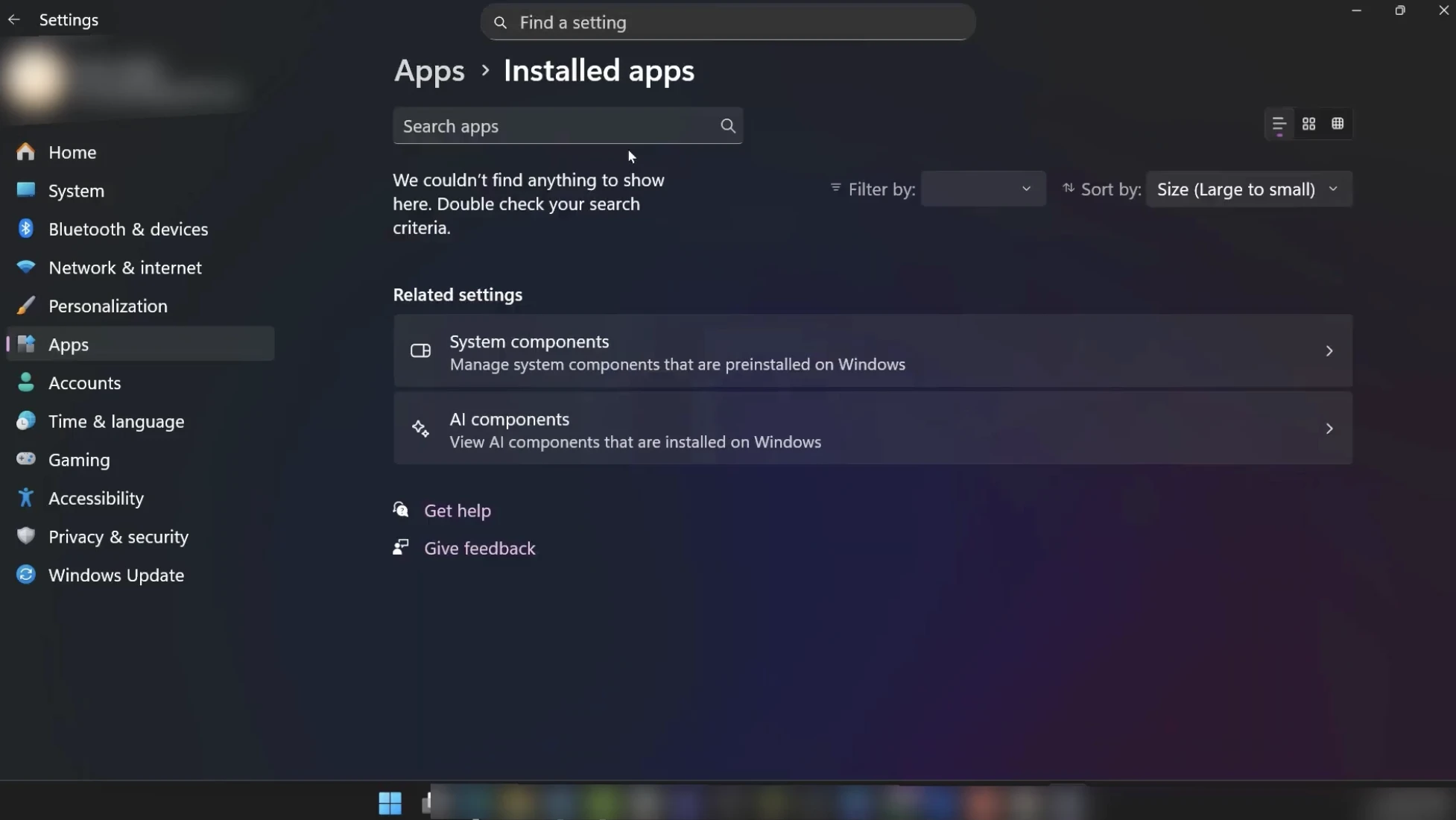
3 Scroll down the list to find Equalizer APO. Click on the three dots next to it and select Uninstall.
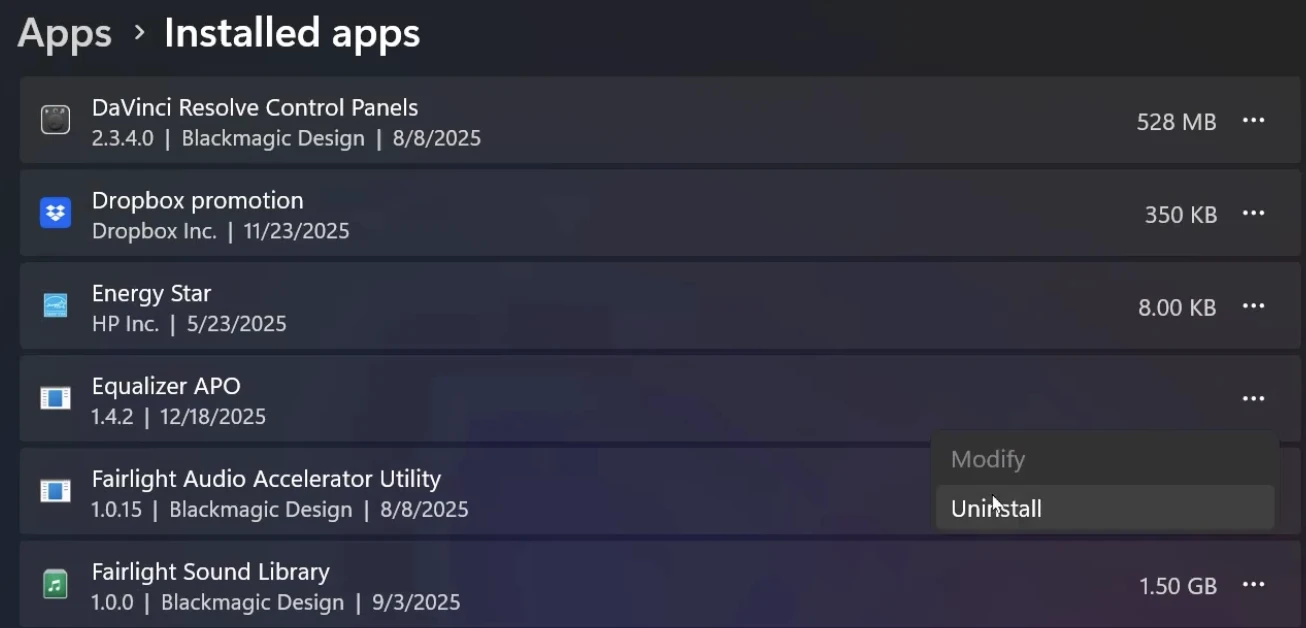
4 Once the uninstallation is complete, download the installer again from our download section and reinstall the software.
Still Not Working?
If you have gone through every step in this guide and Equalizer APO is still not affecting your sound, the issue is almost certainly related to conflicting OEM software.
Some gaming headsets and USB audio interfaces force their own proprietary audio processing software (like Razer Synapse, Logitech G Hub, or Corsair iCUE) to override Windows system effects. These programs aggressively block Equalizer APO from working. Try completely disabling or uninstalling your headset's proprietary software, rebooting your PC, and testing Equalizer APO again.
Video Guide: Troubleshooting Equalizer APO
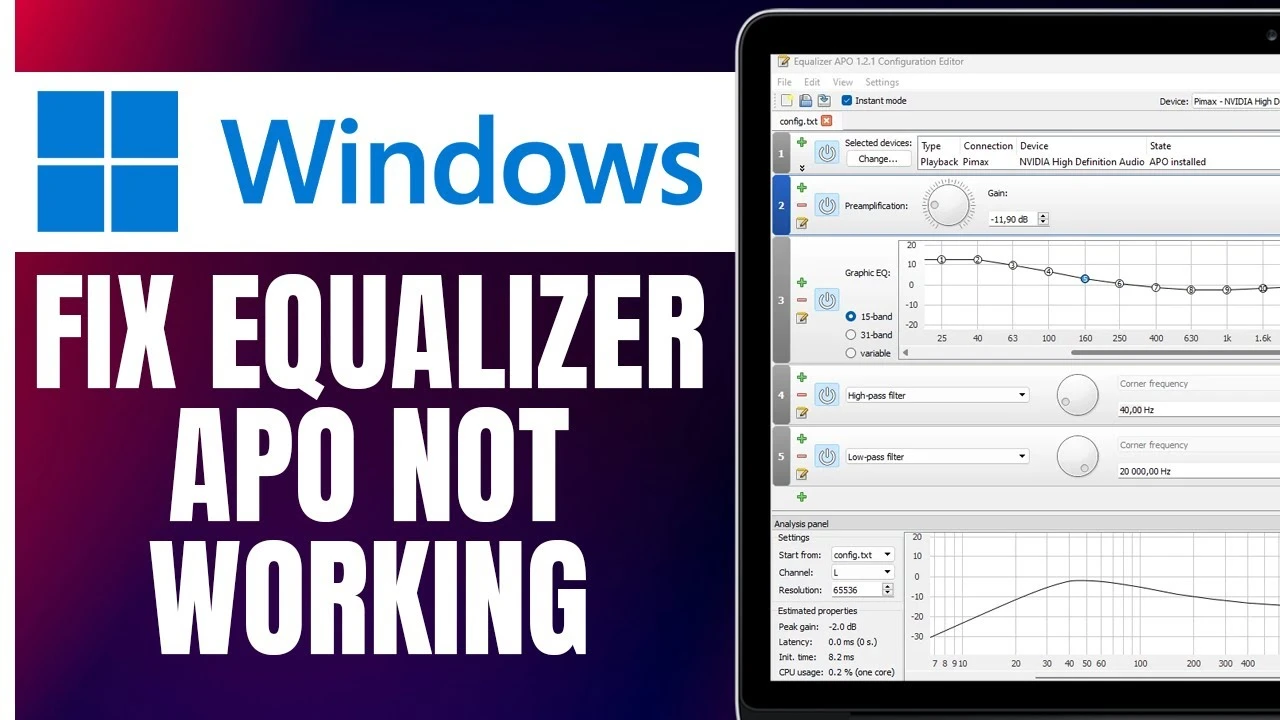
Full Video Troubleshooting Tutorial
Watch this step-by-step video guide resolving the most common issues where Equalizer APO doesn't affect sound, devices are missing, or drivers conflict.
