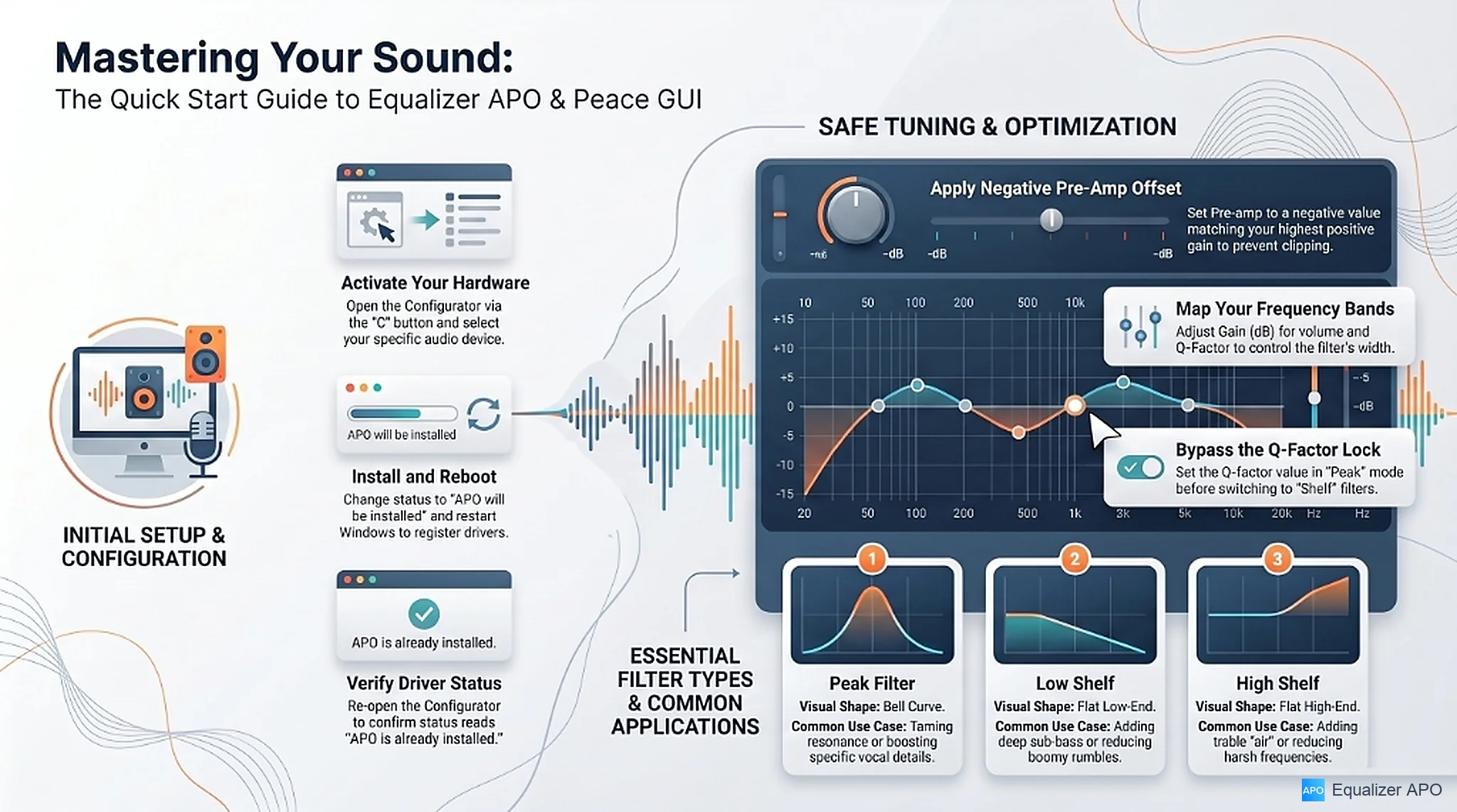
What is Equalizer APO
Equalizer APO is a system-wide parametric equalizer engine for the Windows operating system. It operates as an Audio Processing Object (APO) on the system’s audio infrastructure, allowing users to modify sound output globally across all applications - including media players, web browsers, games, and voice communication platforms.
This tutorial provides a step-by-step walkthrough to safely configure external USB audio devices, set up custom profiles, and apply professional-grade acoustic tuning profiles.
HOW TO CONFIGURE YOUR AUDIO DEVICE
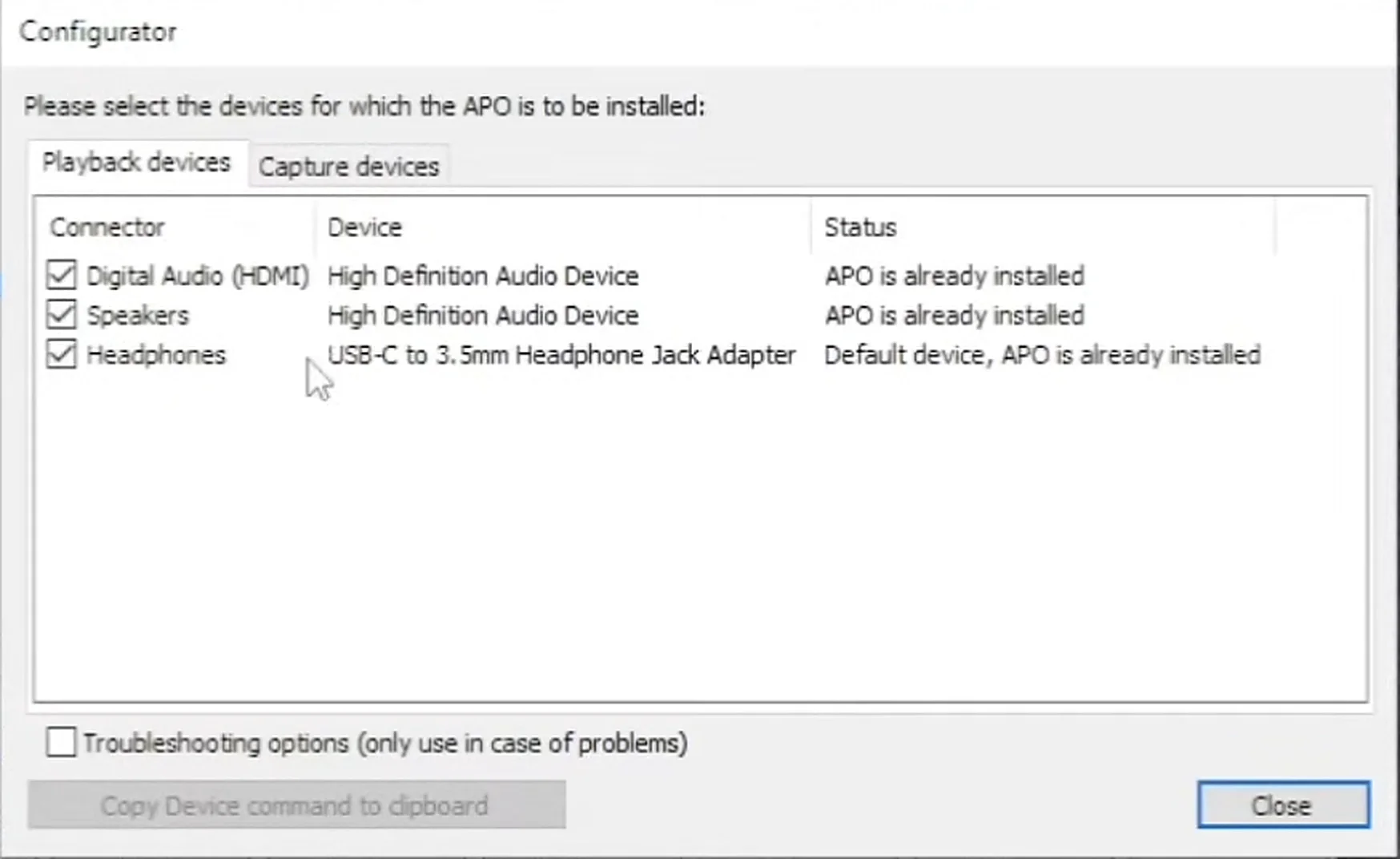
Once your computer restarts, you may need to configure new audio hardware, such as a USB-C to 3.5mm headphone adapter. This section explains how to activate the APO driver on external devices.
Step 1: Open Peace Equalizer and Open the Configurator
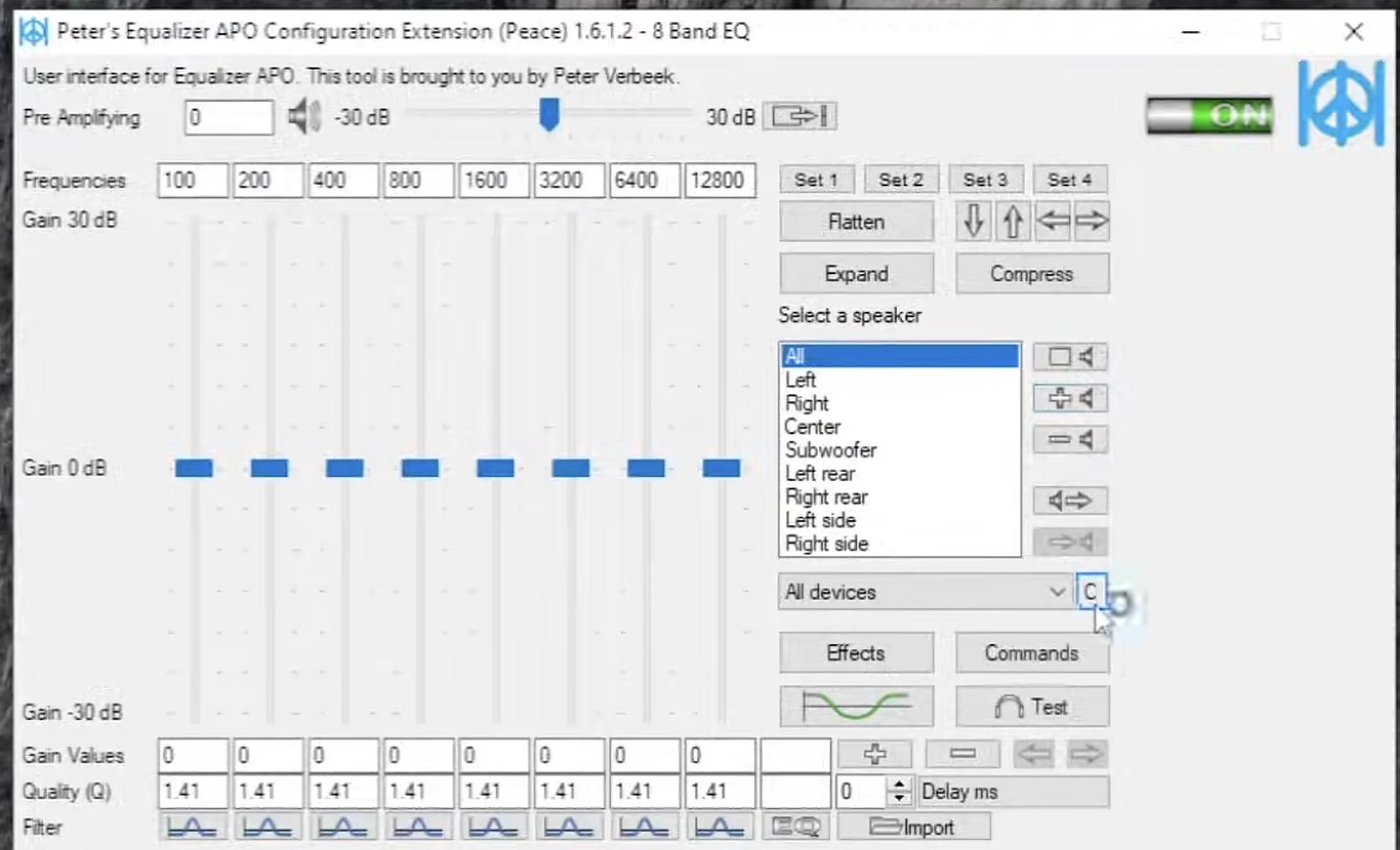
Double-click the Peace icon on your desktop to launch the visual interface. If a Windows Update warning appears, click Continue to access the main panel. From the main window, click the small "C" button located directly next to the device dropdown menu on the right. This opens the system driver management list.
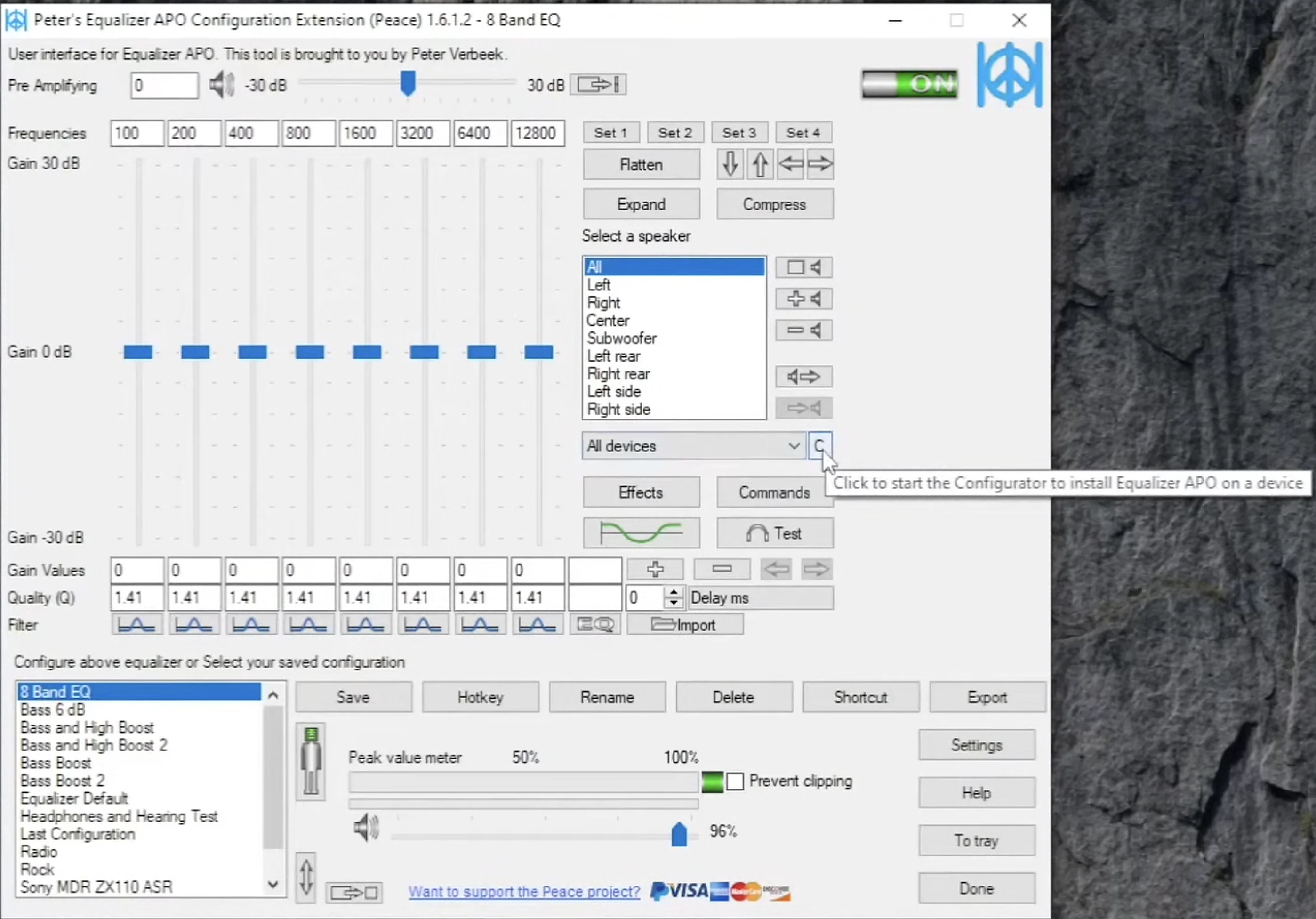
Step 2: Connect Your Audio Hardware and Refresh the Device List
Connect your external audio device, such as a USB-C adapter, directly to an open port on your PC. In the Configurator window, click OK or refresh the display. The list will update to show the newly connected hardware interface.
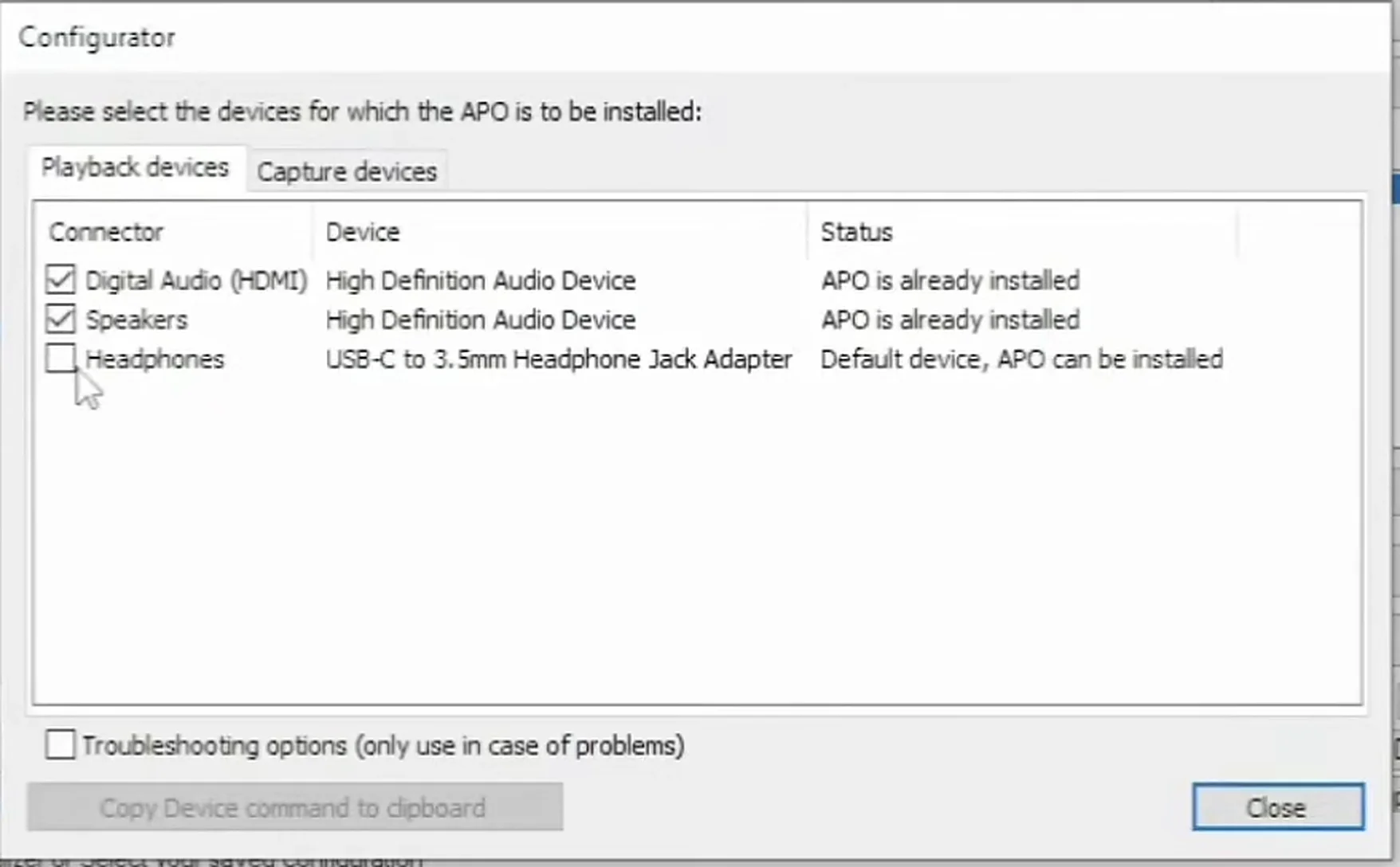
Step 3: Install the APO Driver and Execute a System Reboot
Check the box next to your newly detected USB device to register it under the APO structure. You will see its status change from "APO can be installed" to "APO will be installed". Click OK to save the changes, and click Yes to restart your computer.
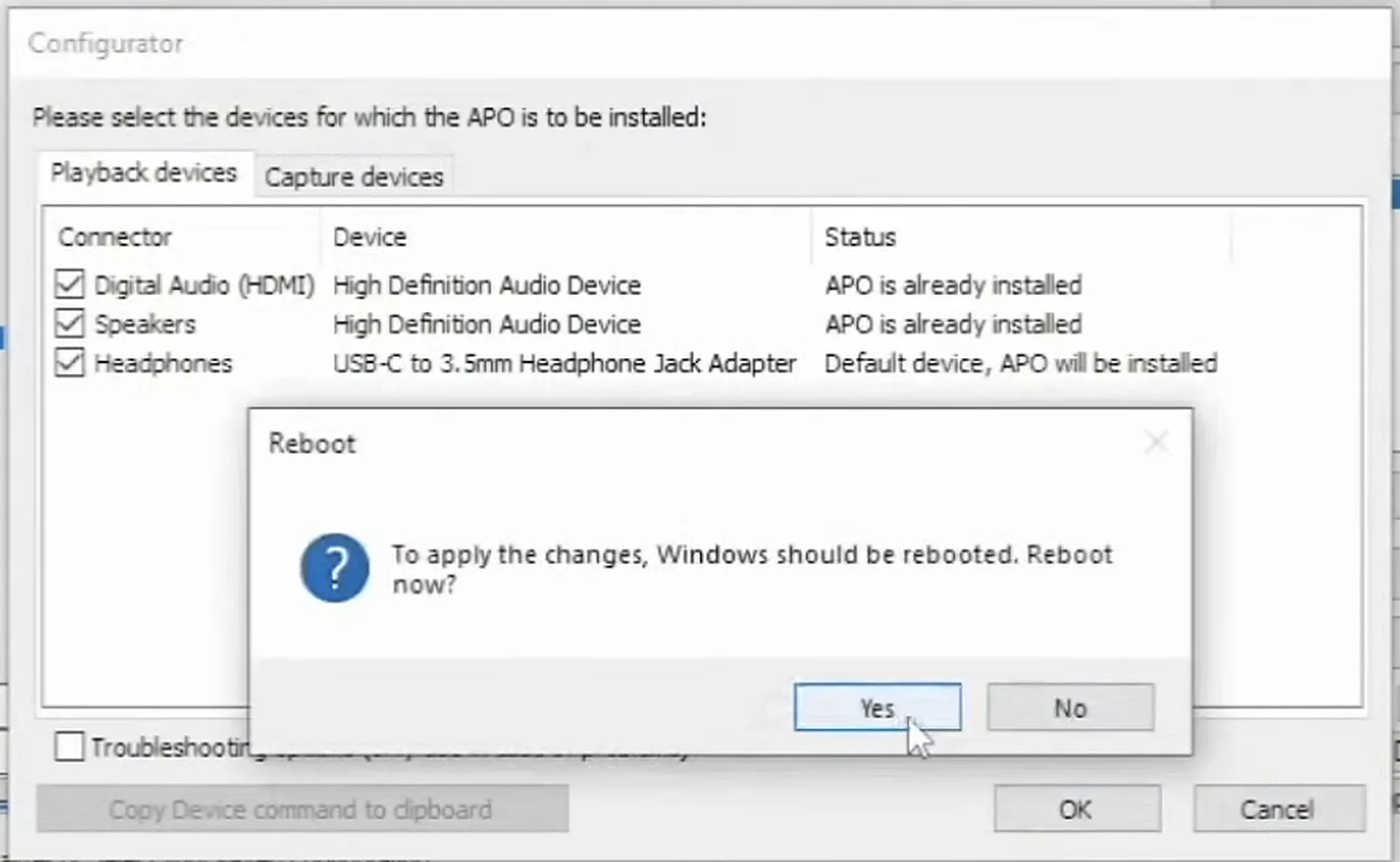
Step 4: Verify Your Active Device Status
After the computer restarts, open the Peace Equalizer again and click the "C" button once more. Confirm that the status column next to your USB audio device reads "APO is already installed". You can now close the Configurator and begin adjusting your audio.
HOW TO USE THE CONFIGURATION EDITOR
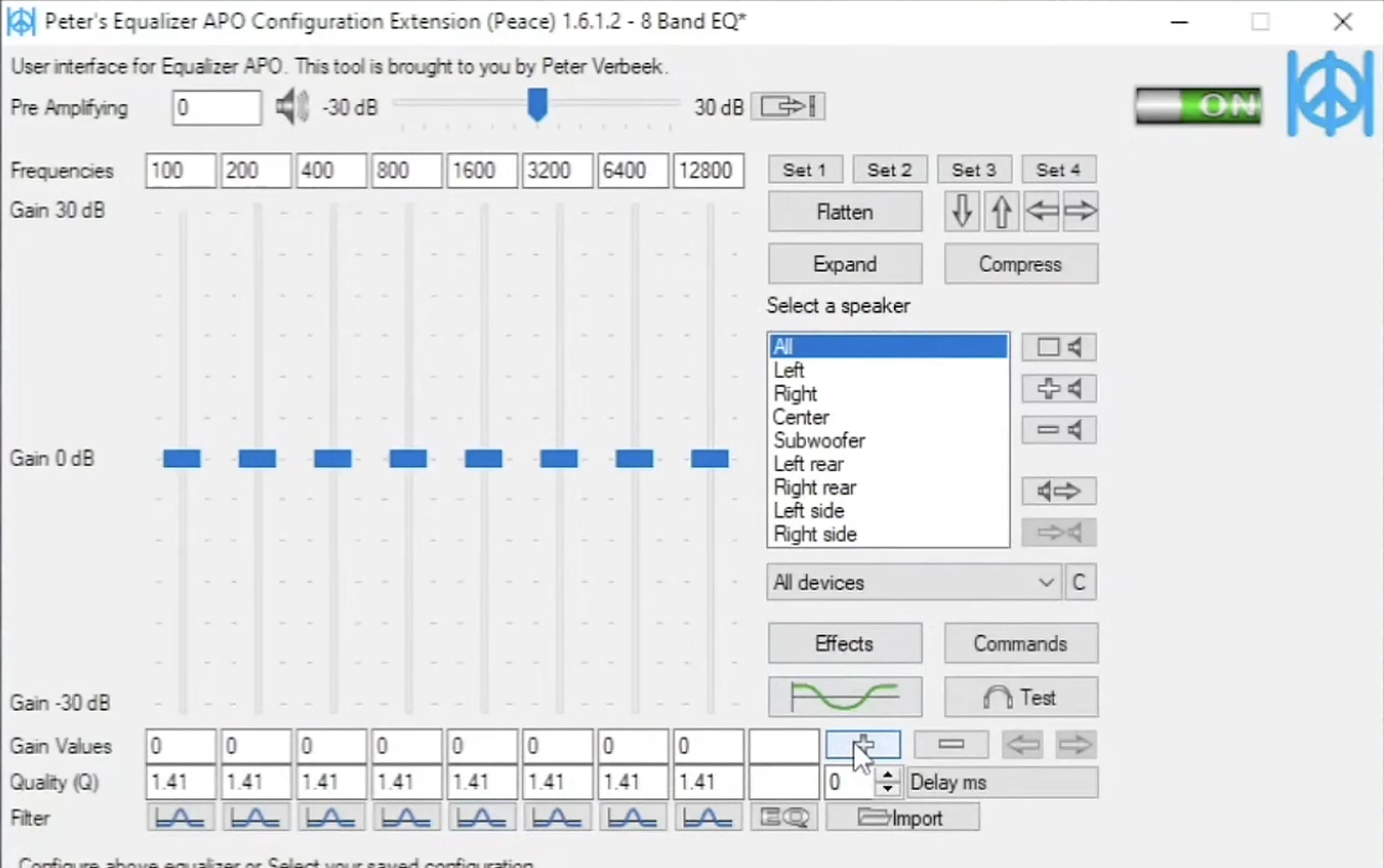
The Peace Equalizer Full Interface features an accessible, modular design. Understanding the interface layout makes it much easier to customize your sound.
View original layout character chart
+--------------------------------------------------------------+
| [Pre-Amplifying Slider (Gain Offset: -X dB)]                 |
+--------------------------------------------------------------+
| (Freq 1)  (Freq 2)  (Freq 3)  (Freq 4)  (Freq 5)    [+]      |
|    |         |         |         |         |        [-]      |
|   [ ]       [ ]       [ ]       [ ]       [ ]                |
|    |         |         |         |         |        [C]      |
| (Gain 1)  (Gain 2)  (Gain 3)  (Gain 4)  (Gain 5)             |
| (Filter 1) (Filter 2) (Filter 3) (Filter 4) (Filter 5)       |
| (Q-value) (Q-value) (Q-value) (Q-value) (Q-value)            |
+--------------------------------------------------------------+
| [Save Profile]                     [Active Device Selector]  |
+--------------------------------------------------------------+Adding and Disabling Sliders
- To add a new frequency band: Click the green "+" button on the right side of the slider panel. This adds a new column to your equalizer setup.
- To disable or delete a band: Right-click the slider or the filter icon at the bottom of the column you want to remove. Disabling unused bands helps simplify your workspace.
Saving Custom Profiles
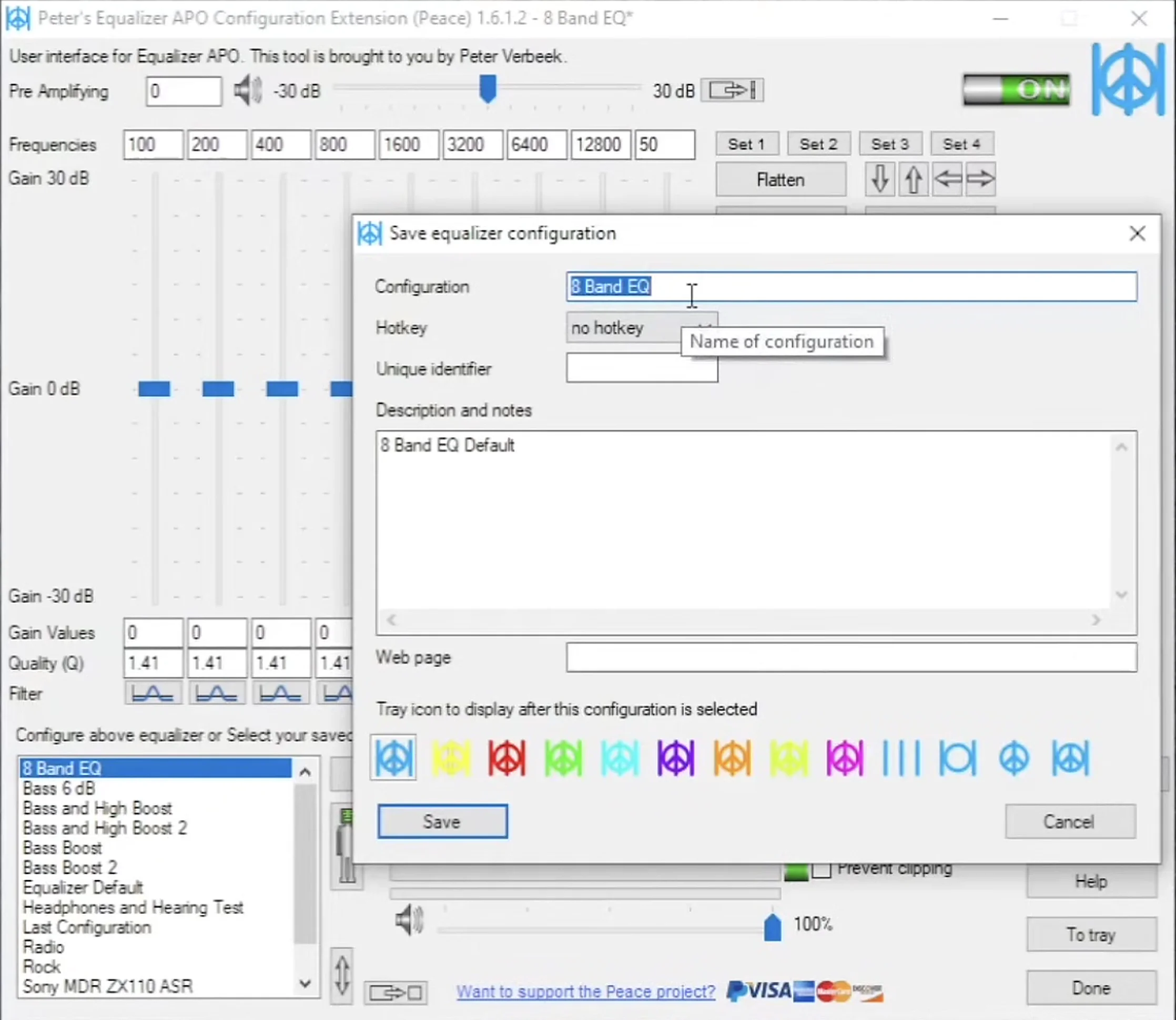
Once you have adjusted your settings, save them as a custom profile:
- Click the Save button located on the lower left of the interface.
- Enter a unique name for your profile (such as "EQ 1" or "My Headphone Profile").
- Click Save to confirm.
Note on Custom Profiles
Important: Avoid overwriting the default profiles (such as "8 Band EQ"). Creating unique profile names preserves the software's default baselines.
HOW TO CREATE YOUR FIRST EQ PROFILE
This section will guide you through creating a simple custom audio profile from scratch.
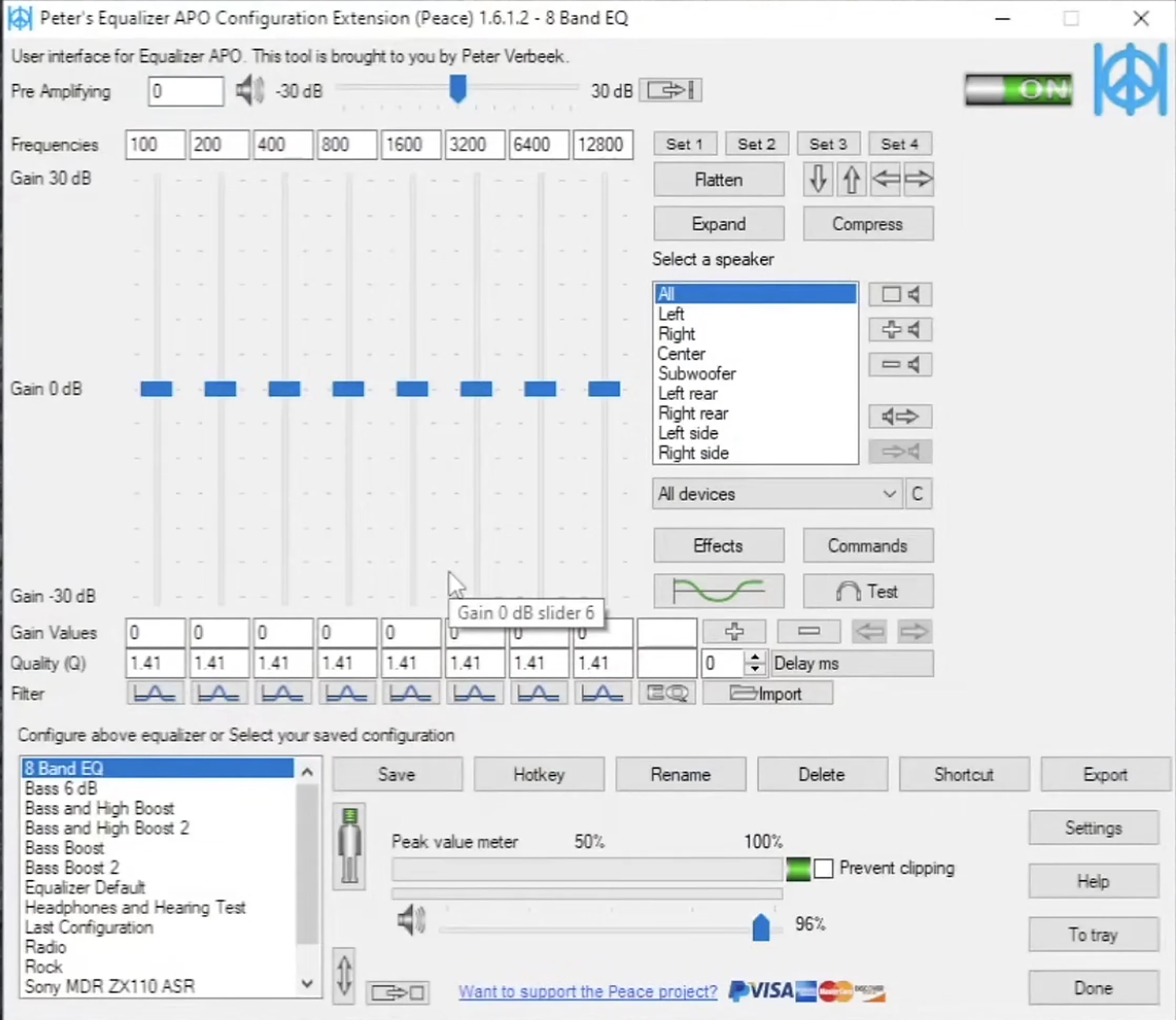
Step 1: Open a Default Configuration
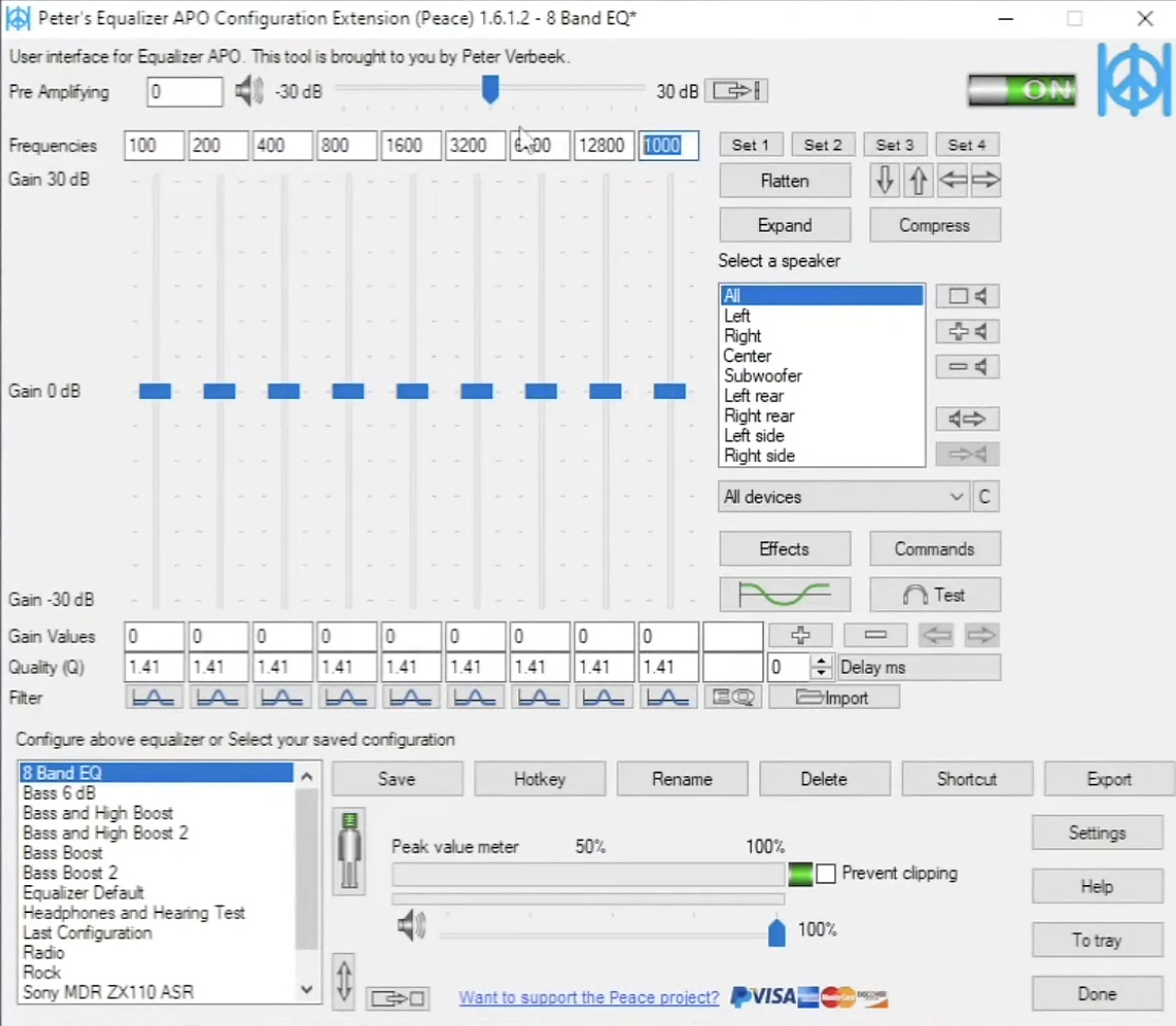
Launch the Peace Equalizer to open the default standard 8-band equalizer workspace. Ensure that your primary playback hardware (for example, Speakers or Headphones) is selected in the active device dropdown menu at the bottom right.
Step 2: Adjust Your Frequency Bands
Modify the frequency values at the top of the columns to target specific areas of your sound:
- Left Sliders (10Hz – 250Hz): These control the sub-bass and mid-bass regions.
- Middle Sliders (250Hz – 4000Hz): These control vocal clarity, instrument presence, and midrange detail.
- Right Sliders (4000Hz – 20000Hz): These control treble clarity and high-frequency "air."
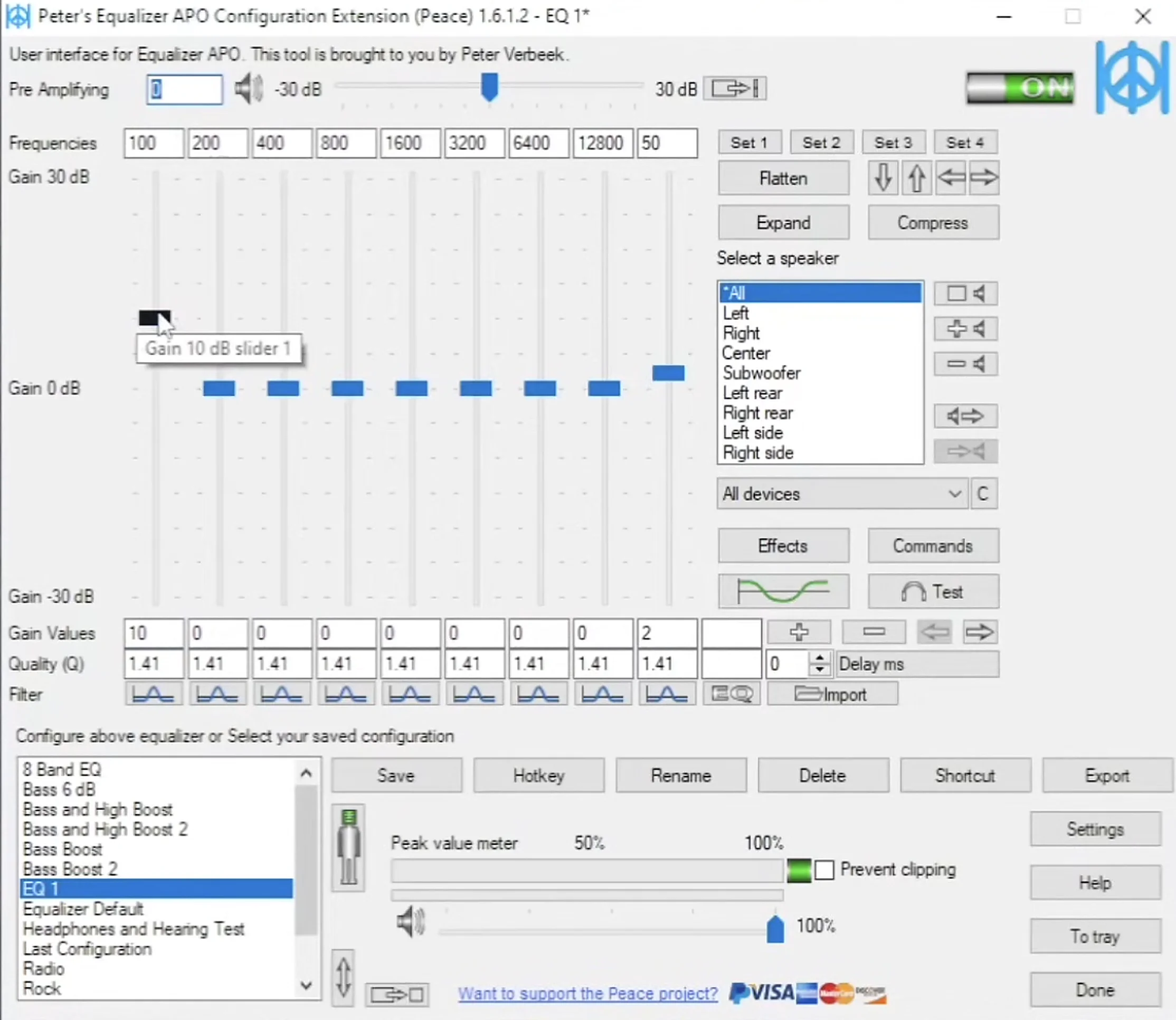
For example, to boost sub-bass, change the first frequency box to 50 (representing 50Hz) and raise its slider to raise the gain.
Step 3: Adjust the Pre-Amp to Prevent Clipping
When you boost any frequency gain above 0dB, the digital audio signal can overload and distort. This is known as digital clipping. To prevent this:
- Identify the highest positive boost value in your EQ profile (for example, a +10dB boost at 50Hz).
- Set the Pre-Amplifying slider at the top of the screen to the opposite negative value (for example, -10dB).
This ensures your audio remains clean and free of distortion.
HOW TO IMPORT PROFESSIONAL PRESETS (E.G., ORATORY1990)
If you want to correct the frequency response of specific headphone models, you can import professional acoustic measurements from the Oratory1990 database on Reddit.
Step 1: Find Your Headphone Profile
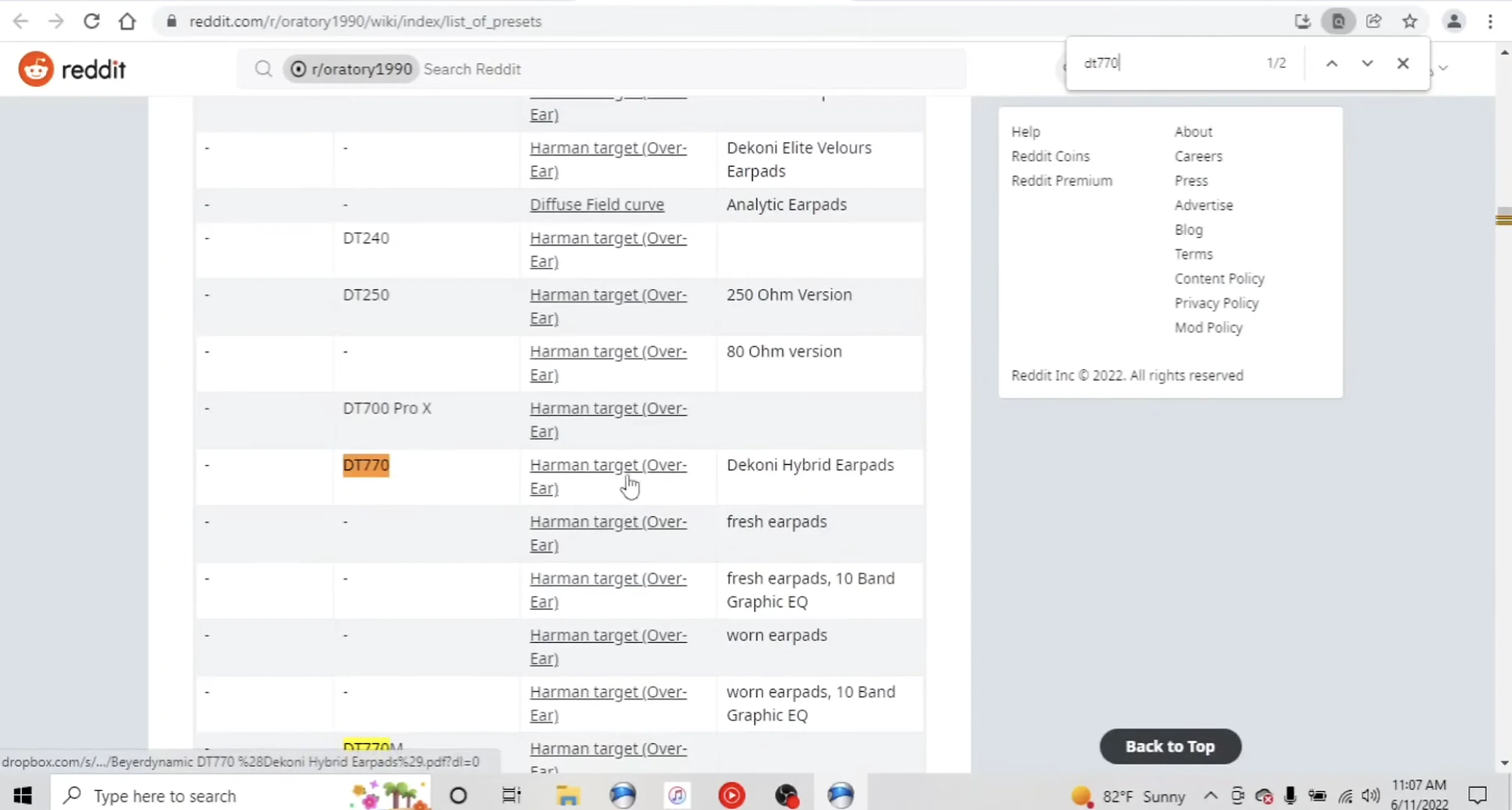
Navigate to the Oratory1990 index database and search for your headphone model. For example, if you search for "DT770," you will see different options based on pad wear (such as *Beyerdynamic DT770 (fresh earpads)*). Click the link to open the corresponding PDF configuration file.
Step 2: Open the Parameter Specifications Table
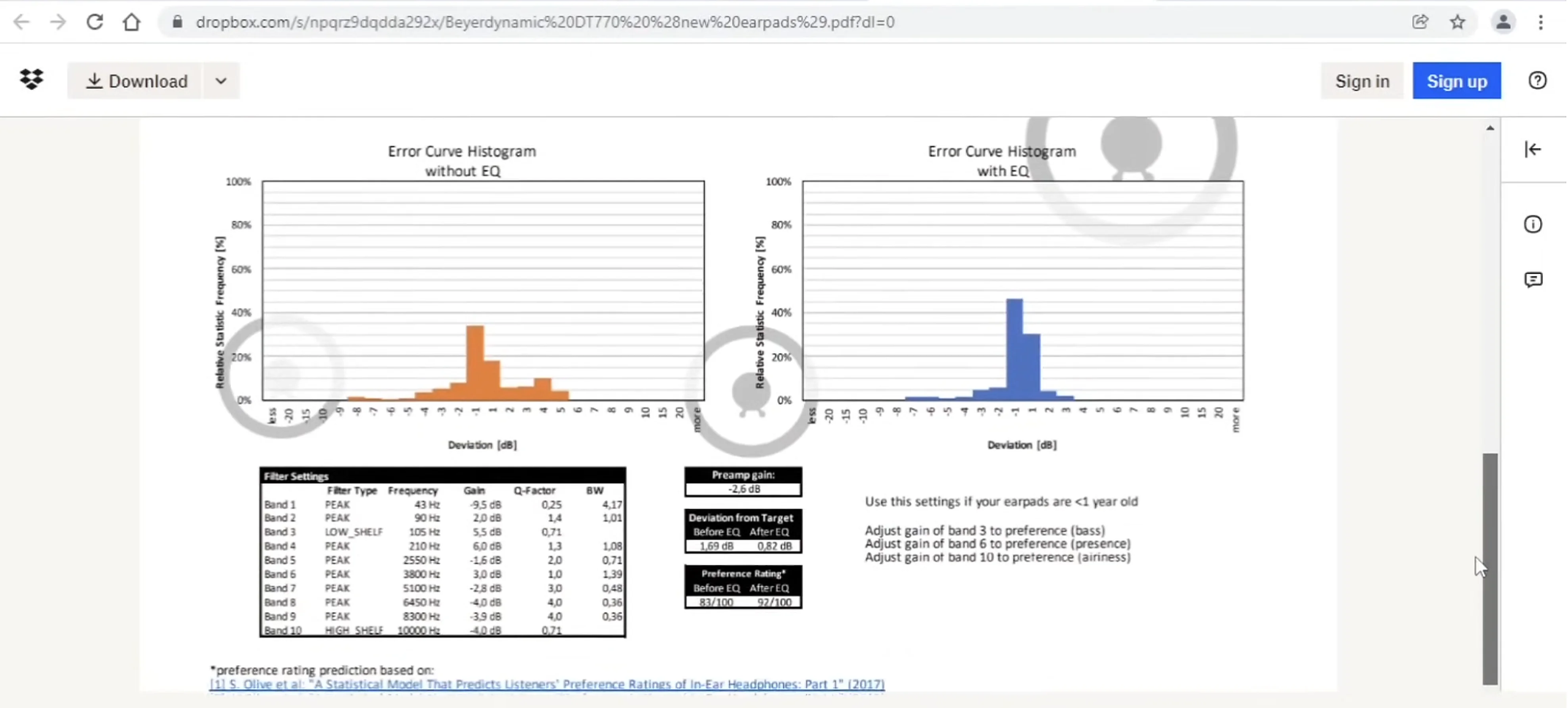
Open the PDF and scroll down to locate the Filter Settings table. This table contains the exact parameters needed to apply the acoustic correction profile.
Step 3: Enter the Parameters into Peace Equalizer
For each band listed in the PDF table, enter the corresponding values into the columns of your Peace Equalizer:
- Filter Type: Set this to match the PDF (typically Peak or Low Shelf).
- Frequency: Enter the exact frequency value (in Hz).
- Gain: Adjust the slider to match the specified decibel value (in dB).
- Q-Factor: Enter the specified quality width value.
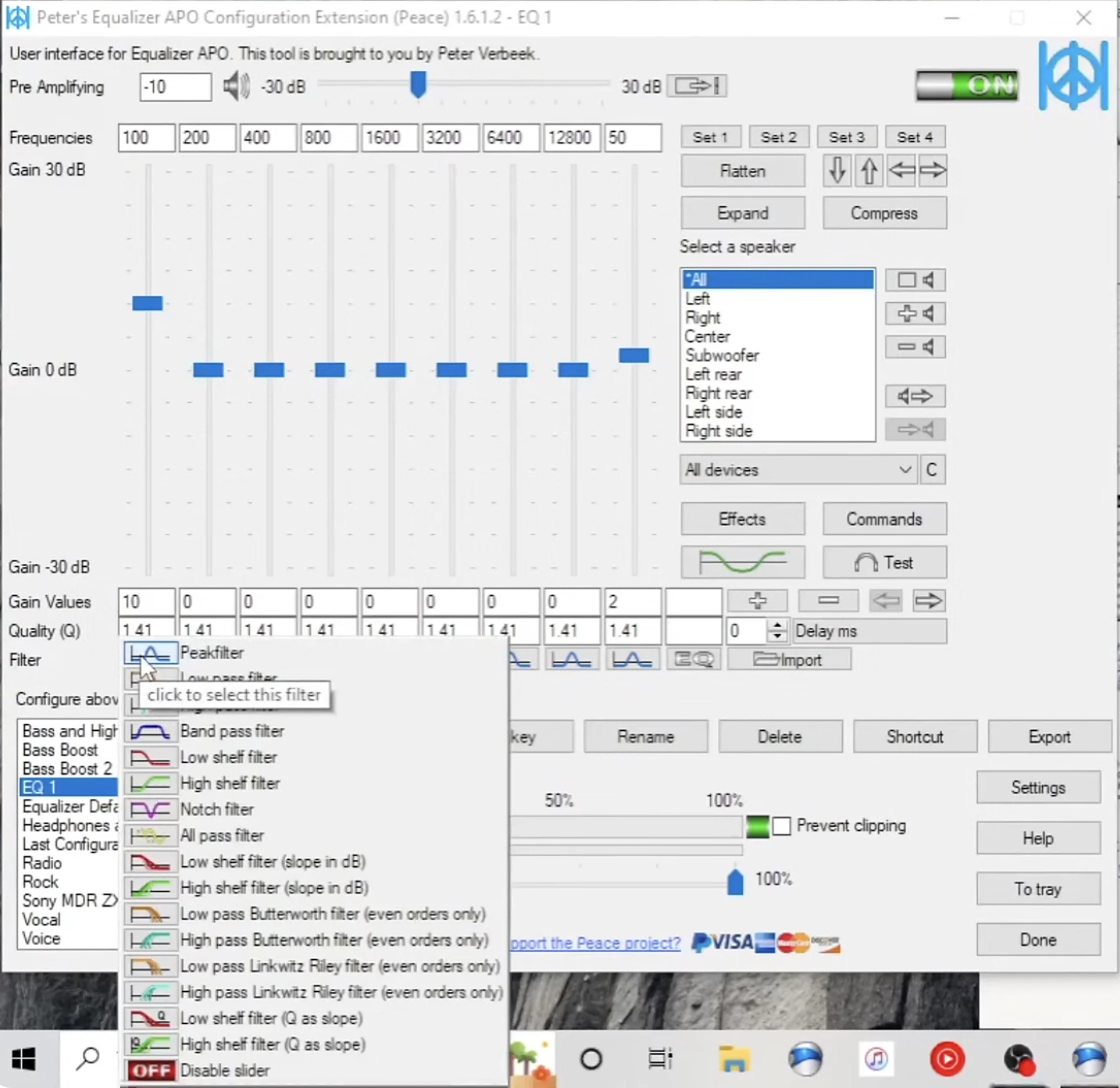
Step 4: The Q-Factor Low Shelf Configuration Trick
When configuring a Low Shelf or High Shelf filter, the Peace Equalizer locks and grays out the Q-factor input box once the shelf filter is selected. To bypass this:
- Set the filter type to Peak Filter first.
- Type your desired Q-factor value (for example, 0.7) into the Q-factor input box.
- Change the filter type dropdown to Low Shelf Filter.
The Q-factor value will remain locked at your chosen setting, ensuring the filter matches the PDF specifications.
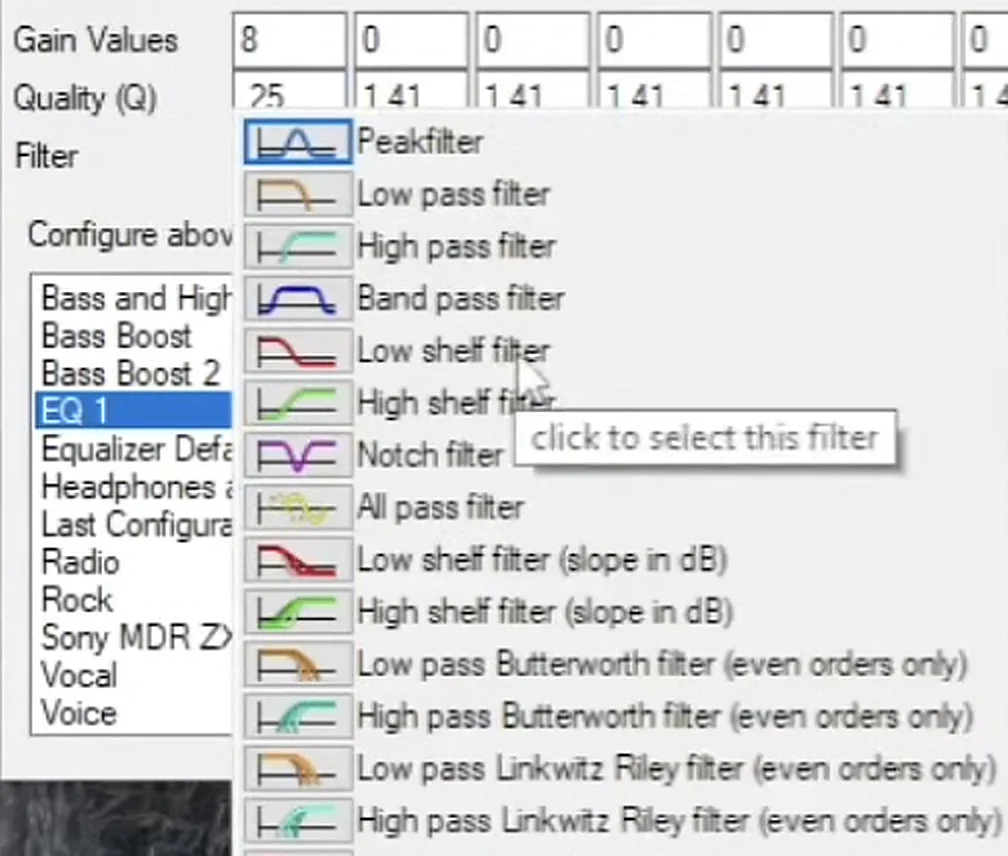
COMMON EQUALIZER APO FILTERS EXPLAINED
| Filter Type | Graphic Representation | Purpose | Best Used For |
|---|---|---|---|
| Peak Filter | Bell-shaped curve centered on a specific frequency. | Boosts or cuts a narrow, targeted band of frequencies. | Taming resonance peaks or boosting specific vocal details. |
| Low Shelf | Flat adjustment extending to all frequencies below a threshold. | Evenly boosts or cuts all frequencies below the target frequency. | Boosting deep sub-bass or reducing boomy low-end rumble. |
| High Shelf | Flat adjustment extending to all frequencies above a threshold. | Evenly boosts or cuts all frequencies above the target frequency. | Adding "air" to treble or reducing harsh high frequencies. |
| Preamp | Uniform adjustment across the entire audio spectrum. | Offsets the overall volume level to prevent digital clipping. | Offsetting positive equalizer boosts to maintain clean audio signals. |
Video Guide: Using Filters & Peace GUI
Step-by-Step Setup Video Walkthrough
Watch this comprehensive guide to configure parametric filters, customize low-shelf and high-shelf bands, and use the Peace GUI utility to optimize sound without digital clipping.
HOW EQUALIZER APO APPLIES CHANGES IN REAL TIME
Equalizer APO processes audio directly within the Windows audio subsystem. This integration allows for real-time changes with minimal impact on system performance.
View original text signal chart
+------------------+ +-----------------------+ +-------------------+
| Audio Source     | --> | Windows Audio Engine  | --> |   Equalizer APO   |
| (Media Player/   | | (DirectSound/WASAPI)| |  (Parametric EQ)  |
| Game)            | +-----------------------+ +---------+---------+
+------------------+                                         |
                                                             v
+------------------+ +-----------------------+ +---------+---------+
| Final Sound      | <-- | Audio Output          | <-- |  APO Processing   |
| (Headphones/Spk) | | (USB DAC / Speakers)  | |  (Low-Latency)    |
+------------------+ +-----------------------+ +-------------------+
Why Changes Apply Instantly
Because Equalizer APO operates as an Audio Processing Object (APO) within the Windows audio engine, it intercepts the digital audio stream and applies filter algorithms before the signal is sent to your hardware. This direct system-level integration allows any adjustments made in the Peace Equalizer to be applied to your active audio stream instantly.
Low CPU Utilization
parametric equalization relies on mathematically efficient algorithms. Processing audio mathematically at the system level requires very little processing power. This allows Equalizer APO to run in the background with negligible CPU usage, making it an excellent option for low-latency tasks like gaming.
COMMON USE CASES
Better Music Listening
Adjust your system audio to match your favorite music genres. Add warmth to vocal tracks by boosting the low-mids, or increase clarity and detail in acoustic music by gently raising the upper treble frequencies.
Gaming Audio Improvements
Enhance your in-game positional awareness. You can emphasize footsteps or weapon sounds by boosting frequencies in the 1kHz to 3kHz range, or reduce fatiguing low-frequency explosions for a cleaner overall audio mix.
Movie and Media Enhancement
Improve dialogue clarity and sound effects in movies. Boost the frequencies around 500Hz to 2kHz to make voices clearer, or raise sub-bass frequencies to create a more cinematic home-theater experience.
Headphone Correction
Correct the frequency response of your headphones. You can use professional measurement profiles, such as the Oratory1990 database, to smooth out peaks and dips in your headphones' factory sound signature for a more accurate listening experience.
BEST SETTINGS EXAMPLES
These starting profiles can serve as a baseline for customizing your audio.
Sub-Bass Boost
Designed to add deep, tactile bass without muddying the vocal midrange.
- Filter 1: 40 Hz, +5.0 dB Gain, 0.7 Q-Factor (Low Shelf Filter)
- Filter 2: 80 Hz, +3.0 dB Gain, 0.5 Q-Factor (Peak Filter)
- Pre-Amp Offset: -5.0 dB
High-Frequency Air (Treble Boost)
Restores clarity, detail, and sparkle to dark-sounding headphones or speakers.
- Filter 1: 10000 Hz, +4.0 dB Gain, 0.7 Q-Factor (High Shelf Filter)
- Filter 2: 15000 Hz, +2.0 dB Gain, 0.7 Q-Factor (Peak Filter)
- Pre-Amp Offset: -4.0 dB
Clear Vocals and Dialogue
Emphasizes the human vocal range to make speech in movies, podcasts, and calls easier to understand.
- Filter 1: 250 Hz, -2.0 dB Gain, 0.7 Q-Factor (Peak Filter)
- Filter 2: 1500 Hz, +3.5 dB Gain, 1.0 Q-Factor (Peak Filter)
- Filter 3: 3000 Hz, +2.0 dB Gain, 1.2 Q-Factor (Peak Filter)
- Pre-Amp Offset: -3.5 dB
COMMON MISTAKES TO AVOID
- Forgetting to Offset the Pre-Amp: Boosting equalizer gains without lowering the pre-amp can lead to digital clipping and audio distortion. Always set your pre-amp to match your largest positive gain boost.
- Omitting the System Reboot: Equalizer APO functions as a system-level driver. If you do not restart your computer after adding or changing audio devices in the Configurator, your changes will not take effect.
- Incorrect Q-Factor Input Sequence: Choosing a shelf filter before entering your Q-factor will lock the Q-factor input box in Peace Equalizer. Remember to set the Q-factor value first while the filter is set to Peak, then switch to the shelf filter.
- Selecting the Wrong Active Playback Device: If your EQ profiles are active but you do not hear any change in sound, ensure the correct playback hardware is selected in the device dropdown menu in the lower-right corner of the Peace Equalizer.
TROUBLESHOOTING
Looking for a complete troubleshooting walkthrough?
We have a dedicated guide covering all possible causes, device conflicts, and step-by-step fixes.
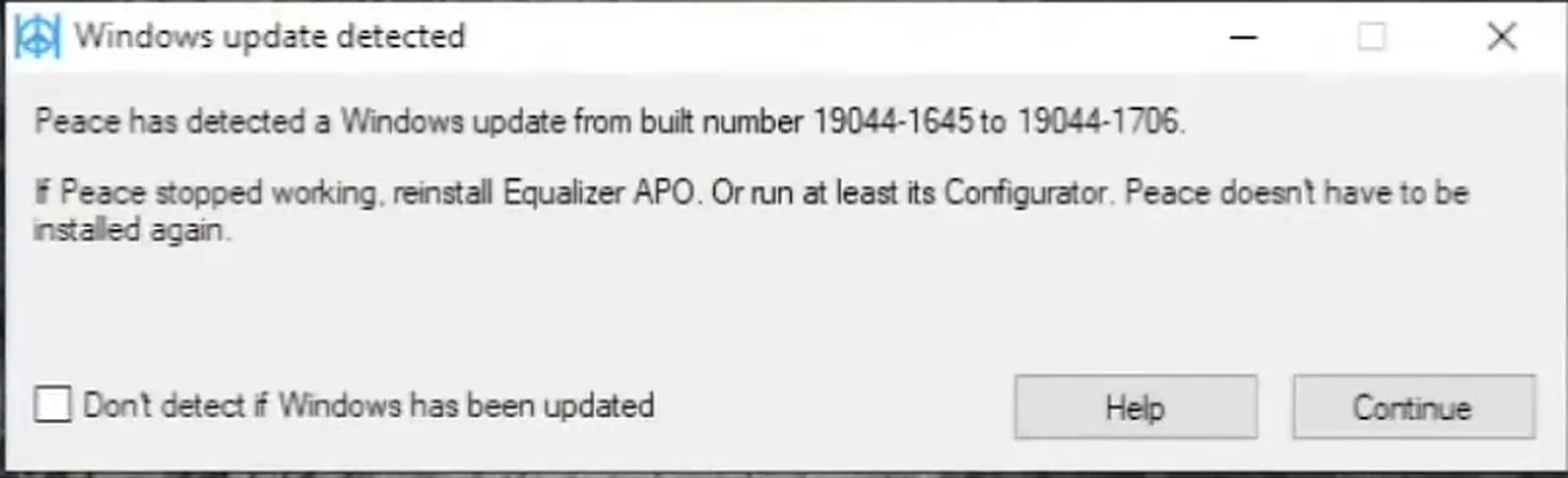
Issue 1: Equalizer stops working after a Windows Update
- Symptoms: System audio sounds flat, and changes made in Peace Equalizer have no effect, often following a Windows system update.
- Solution: Windows updates can sometimes overwrite system APO registrations. To fix this, run the Equalizer APO Configurator utility, verify that your playback devices are checked, click OK, and reboot your computer. If the issue persists, reinstall Equalizer APO using the setup file and restart.
Issue 2: A newly connected USB DAC or headphone adapter has no EQ effect
- Symptoms: Your newly connected audio hardware plays sound, but adjustments in Peace Equalizer do not change the audio.
- Solution: Open the Configurator by clicking the "C" button in Peace Equalizer. Find your new USB device and check if its status says "APO can be installed". If so, check the box next to the device, click OK, and reboot your system to activate the driver.
Issue 3: The audio sounds distorted or crackles on bass notes
- Symptoms: Audio sounds degraded, crackles, or distorts during bass-heavy passages.
- Solution: This is caused by digital clipping. Lower your Pre-Amplifying gain slider in Peace Equalizer to match or exceed your highest positive equalizer boost (for example, if you have a +6dB boost, set the preamp to -6dB).
Warning: Digital Clipping
Always double-check that your preamp is set to a negative offset matching your highest slider gain. This prevents digital crackle and protects your hearing.

FAQ
No. Once you apply and save your settings, the active configuration is written directly to Equalizer APO’s system files. The equalization will run in the background even if you close the Peace Equalizer window.
Yes. Equalizer APO works with most USB DACs, external sound cards, and headphone dongles. While some Bluetooth headphones with proprietary drivers may require additional configuration, standard Bluetooth devices are fully supported.
The pre-amp reduces the digital volume level to prevent clipping. You can compensate for this drop in volume by raising the physical volume control on your speakers, headphone amplifier, or audio interface.
Peace Equalizer grays out the Q-factor input box for certain shelf filters. To change this value, temporarily switch the filter type back to Peak Filter, enter your desired Q-factor, and then change the filter type back to your preferred shelf filter.
Wrapping Up
Customizing your system audio using Equalizer APO and the Peace Equalizer is an effective way to adjust your overall listening experience. Whether you want to correct factory headphone sound signatures, optimize a microphone, or simply add a bit of warmth to your music, this software combination provides the necessary control directly within Windows.
As you start adjusting your settings, remember to make gradual changes and keep an eye on the pre-amplification level to prevent digital clipping. Experimenting with different frequencies and importing measurement-based presets, like those from Oratory1990, can help you find a suitable balance for your hardware.
If you run into issues after Windows updates, a quick check of the device Configurator will usually restore your setup. Take your time to explore different profiles and enjoy your customized sound signature.
